
 [Custom] Menu
 [Custom] menu ([Image Quality])
[Custom] menu ([Focus/Shutter])
[Custom] menu ([Monitor / Display (Photo)])
[Custom] menu ([Monitor / Display (Video)])
[Custom] menu ([Lens / Others])
[Custom] menu ([Image Quality])
|
|

[Photo Style Settings]
|
[Show/Hide Photo Style] |
[Vivid] / [Natural] / [L.Classic] /[L.ClassicNeo] / [L.ClassicGold] / [Flat] / [Landscape] / [Portrait] / [L.Monochrome] / [L.Monochrome D] / [L.Monochrome S] / [LEICA Monochrome] / [Cinelike A2] / [Cinelike D2] / [Cinelike V2] / [Like709] / [V-Log] / [REAL TIME LUT] / [Hybrid Log Gamma] / [MY PHOTO STYLE 1] to [MY PHOTO STYLE 10] |
|
Sets Photo Style items to be displayed on the menu. |
|
|
[My Photo Style Settings] |
[Add Effects] |
|
[Load Preset Setting] |
|
|
Enables detailed image quality adjustment settings for My Photo Style. [Add Effects]: Enables [Sensitivity] and [White Balance] settings in image quality adjustment. [Load Preset Setting]: Sets the timing at which image quality adjustment values changed in My Photo Style are returned to their registered state. |
|
|
[Reset Photo Style] |
|
|
Returns details changed in [Photo Style] and [Photo Style Settings] to their default settings. |
|
[LUT Library]
|
[Vlog_709] / [Sample LUT1] / [Sample LUT2] / [Sample LUT3] / [Set4] to [Set39] |
|
Registers LUT files to the camera. |

[ISO Increments]
|
|
|
Changes the intervals between ISO sensitivity adjustment values. |
[Extended ISO]
|
[ON] / |
|
Extends the setting range of ISO sensitivity. |
[Exposure Offset Adjust.]
|
[Multi Metering] |
[−1EV] to [+1EV] ( |
|
[Center Weighted] |
[−1EV] to [+1EV] ( |
|
[Spot] |
[−1EV] to [+1EV] ( |
|
[Highlight Weighted] |
[−1EV] to [+1EV] ( |
|
Adjusts the exposure level that is the standard exposure for each setting item of [Metering Mode]. Adds the adjustment value from this function to the exposure compensation value (
|
|
 For video recording, it is not possible to add an adjustment value of a range that exceeds ±3 EV.
[Face Priority In Multi Metering]
|
|
|
When [Metering Mode] is set to [ When set to [OFF], the change to exposure caused by the [Eye/Face] automatic detection function can be avoided. |
 ] (Multi-metering), the metering range for automatic exposure is prioritized on the eyes and face.
[AWB Lock Setting]
|
[Operation Syncs With Shutter] |
[WHILE PRESSING] / [DURING BURST SHOOTING] / |
|
[Lock Hold With Fn Button] |
|
|
Fixes the white balance while you are pressing the shutter button or the Fn button when white balance is auto ([AWB]/[AWBc]/[AWBw]). This prevents the white balance from changing unintentionally while pressing the shutter button halfway, during burst recording, or while recording videos. [Operation Syncs With Shutter] [WHILE PRESSING]: Fixes white balance while pressing the shutter button (including while pressing halfway or during burst recording). [DURING BURST SHOOTING]: Fixes white balance during burst recording. [OFF]: White balance is not fixed. [Lock Hold With Fn Button] [ON]: When you press the Fn button registered with [AWB Lock], the white balance is fixed. Press again to cancel the lock. [OFF]: While you are pressing the Fn button registered with [AWB Lock], the white balance is fixed.
|
|
 ]/[S&Q] mode.
[Color Space]
|
|
|
This sets the method for correcting the color reproduction of the recorded images on the screens of a PC or on a device such as a printer. [sRGB]: This is widely used in PCs and similar devices. [AdobeRGB]: AdobeRGB is mainly used for business purposes such as professional printing because it has a greater range of reproducible colors than sRGB.
– [SDR] ([HEIF Format]) – Video recording – [Like709]/[V-Log]/[REAL TIME LUT] (base Photo Style is [V-Log]) ([Photo Style]) – [Filter Settings]
|
[Exposure Comp. Reset]
|
[ON] / |
|
This resets the exposure value when you change the recording mode or turn off the camera. |
[Auto Exposure in Photo Mode]
|
|
|
In the [ [ON]: Records with values set automatically by the camera. [OFF]: Records with manually set values. |
 ] mode, select the setting method for aperture value, shutter speed, and ISO sensitivity when recording video with the mode dial set to [P]/[A]/[S]/[M].
[Exposure Control in P/A/S/M]
|
[Exposure Control(Photo Mode)] |
|
|
[Exposure Control(Video Mode)] |
|
|
You can fix the exposure setting for picture or video/S&Q to a desired exposure mode when the mode dial is set to [P]/[A]/[S]/[M]. [MODE DIAL]: Switch the [P]/[A]/[S]/[M] mode to match the mode dial. [P]/[A]/[S]/[M]: Recording is done in the set mode irrespective of the mode dial. |
|
[Photo/Video Separate Setting]
|
[F/SS/ISO/Exposure Comp.] |
|
|
[White Balance] |
|
|
[Photo Style] |
|
|
[Metering Mode] |
|
|
[AF Mode] |
|
|
The settings set in the [ |
|
[Custom] menu ([Focus/Shutter])
|
|
[Focus/Shutter Priority]
|
[AFS] |
|
|
[AFC] |
[FOCUS] / |
|
This sets whether to give priority to focus or shutter release during AF. [FOCUS]: Disables recording when focus is not achieved. [BALANCE]: Performs recording while controlling the balance between focusing and shutter release timing. [RELEASE]: Enables recording even when focus is not achieved. |
|
[Focus Switching for Vert / Hor]
|
[ON] / |
|
This stores separate AF area positions (MF positions for MF Assist) for when the camera is held vertically and when it is held horizontally. |
[AF/AE Lock Hold]
|
[ON] / |
|
This sets button operations for AF/AE Lock. Turning this [ON] maintains the lock after releasing the button until it is pressed again. |
[AF+MF]
|
[ON] / |
|
When the focus mode is set to [AFS]/[AFC], you can fine-adjust the focus manually during AF Lock.
During video recording, the MF mode is engaged when you rotate the control ring, and the AF mode is engaged when you stop rotating the control ring. |
[MF Assist]
|
[Control Ring] |
|
|
[AF Mode] |
|
|
[MF Assist Display] |
[FULL] / |
|
[Max. Magnification in "FULL"] |
[6x] / |
|
This sets the display method of MF Assist (enlarged screen). [Control Ring]: The screen is enlarged by focusing with the control ring. [AF Mode]: The screen is enlarged by pressing [ [MF Assist Display]: Sets the display method (full screen mode/windowed mode) of MF Assist (enlarged screen). [Max. Magnification in "FULL"]: Sets the maximum magnification for the enlarged display ([FULL]). When set to [6x], the area that can be enlarged is broader. |
|
 ] (
] (
[MF Guide]
|
|
|
During MF, MF Guide, which acts as a guide to recording distance, is displayed on the screen. |
[Control Ring Lock]
|
[ON] / |
|
This disables the control ring operation.
|
 ] is displayed on the recording screen while the control ring is locked.
[Focus Range Display]
|
[
|
|
The recordable range (the range of focus) is displayed during zoom operations. You can select from meters or feet for the display unit. |
 ] / [
] / [ ] / [OFF]
[Show/Hide AF Mode]
|
[Tracking] |
|
|
[Full Area AF] |
|
|
[Zone(Horizontal/Vertical)] |
|
|
[Zone] |
|
|
[1-Area+] |
|
|
[Pinpoint] |
|
|
Sets the AF mode items to be displayed on the AF mode selection screen. |
|
 ] / [
] / [ ]
][Pinpoint AF Setting]
|
[Pinpoint AF Time] |
[LONG] / |
|
[Pinpoint AF Display] |
[FULL] / |
|
Changes enlarged screen settings displayed when AF mode is [ [Pinpoint AF Time]: Sets the time for which the screen is enlarged when the shutter button is pressed halfway. [Pinpoint AF Display]: Sets the display method (full screen mode/windowed mode) of the enlarged screen. |
|
 ].
].[Direct Focus Area]
|
[ON] / |
|
This moves the AF area or MF Assist using the cursor buttons when recording.
– When [ – When [ – When [ – When [
– When using [Filter Settings] |
 ]/[
]/[ ]/[
]/[ ]/[
]/[ ] is selected: AF area
 ] is selected: Subject to be focused (When automatic detection is [ON] and multiple subjects have been detected, you can switch the subject to be focused.)
 ] is selected: lock-on position
[AF-Point Scope Setting]
|
[Keep Enlarged Display] |
[ON] / |
|
[PIP Display] |
[FULL] / |
|
Changes the enlarged screen settings of AF-Point Scope ( [Keep Enlarged Display]: Setting this to [ON] maintains the enlarged screen after pressing the Fn button until it is pressed again. [PIP Display]: Sets the display method (full screen mode
|
|

[AF Detect. Multi. Frame Disp.]
|
|
|
Sets how automatic detection frames are displayed during AF. [ON]: Frames are displayed on all detected subjects. [OFF]: Frames displayed only on main subjects.
|
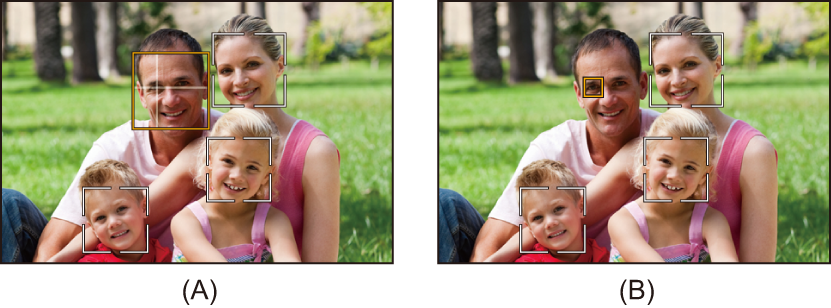
[Human Eye Detection Display]
|
[Eye Detection Style] |
|
|
[Crosshairs During Focus] |
|
|
Sets how to indicate the position of an eye when a human eye is detected. [Eye Detection Style] [ [
[Crosshairs During Focus] [ON]: A cross on the eye remains displayed when focused, such as when the shutter button is pressed halfway. [OFF]: A cross on the eye is not displayed when focused, such as when the shutter button is pressed halfway. |
|
 ] / [
] / [ ]
]
[Shutter AF]
|
|
|
This adjusts focus automatically when you press the shutter button halfway. |
[Half-Press Shutter]
|
[ON] / |
|
You can release the shutter quickly by pressing the shutter button halfway. |
[Assign REC to Shutter Button]
|
|
|
Use the shutter button for the start/stop operation of video recording in the [ The start/stop operation of video recording using the shutter button can be disabled when set to [OFF]. |
[Quick AF]
|
[ON] / |
|
When the amount of camera shake becomes small, the camera will automatically adjust the focus and focus adjustment will then be quicker when the shutter button is pressed.
– In preview mode – In low light situations |
[Eye Sensor AF]
|
[ON] / |
|
When looking through the viewfinder, if the eye sensor operates, then AF will function.
|
[Looped Focus Frame]
|
[ON] / |
|
When moving the AF area, MF Assist, or video enlarged display of live view, this enables looping from one edge to the opposite edge of the screen. |
[Enlarged Live Display(Video)]
|
[Keep Enlarged Display] |
|
|
[PIP Display] |
[FULL] / |
|
Sets the operation of the function for enlarging the video live view ( [Keep Enlarged Display] [ON]: Enlarges display after releasing the Fn button until the button is pressed again. [OFF]: Enlarges display just while the Fn button is being pressed. [PIP Display] Sets the way the enlarged screen is displayed (full screen mode/windowed mode). |
|
[Custom] menu ([Operation])
|
|
[Q.MENU Settings]
|
[Layout Style] |
|
|
[Item Customize (Photo Mode)] |
|
|
[Item Customize (Video/S&Q Mode)] |
|
|
Customizes the Quick menu. |
|
[Touch Settings]
|
[Touch Screen] |
|
|
[Touch Tab] |
[ON] / |
|
[Touch AF] |
|
|
[Touch Pad AF] |
|
|
Enables touch operation on the monitor display. [Touch Screen]: All touch operations. [Touch Tab]: Operations of tabs, such as [ [Touch AF]: Operation to optimize the focus ([AF]) for a touched subject. Alternatively, operation to optimize both the focus and brightness ([AF+AE]). ( [Touch Pad AF]: Touch pad operation during viewfinder display. ( |
|
 ] on the right side of the screen.
[Operation Lock Setup]
|
[Cursor] |
|
|
[Touch Screen] |
|
|
[Dial] |
|
|
[DISP. Button] |
|
|
This sets the control functions to be disabled with the Fn button [Operation Lock]. (Only for recording screen) [Cursor]: Cursor buttons, [MENU/SET] button, and [Touch Screen]: Touch screen [Dial]: [DISP. Button]: [DISP.] button |
|
 ] / [
] / [ ]
]
 and
and [Zoom Settings]
|
[Zoom Operation] |
|
|
|
[Zoom Speed(Photo)] |
|
|
|
[Zoom Speed(Video)] |
[During Recording Standby] |
|
|
[During Recording] |
|
|
|
Sets the zoom operation and speed. [Zoom Operation] [Zoom]: Performs normal zooming. [Step Zoom]: You can set the zoom operation to allow easy visualization of the angle of view (picture angle) for the focal length of a regular fixed focal length lens (as with a 35 mm film camera). When using the [Step Zoom], you can operate the zoom ratio as easily as changing the camera lens.
|
||
[Fn Button Set]
|
[Setting in Photo Mode] |
|
[Setting in Video/S&Q Mode] |
|
[Setting in Playback Mode] |
|
Registers a function to the Fn button. |
[Fn Switch Setting]
|
[Select Function to Assign] |
[Step Zoom] / [Photo Style] / [REAL TIME LUT] / |
|
[Setting Value for 1] |
|
|
[Setting Value for 2] |
|
|
[Setting Value for 3] |
|
|
Sets the functions to be assigned to the Fn switch. |
|
[ISO Displayed Setting]
|
[Rear Dial] |
|
|
This sets the operations of the dials in the setting screen for ISO sensitivity. Assigning [ ISO auto switches between [ON] and [OFF] each time you operate the dial allocated to [ (ISO sensitivity reverts to the previous setting when [OFF] is set.) |
|
 ] / [
] / [ ] / [
] / [ ] / [OFF]
[Exposure Comp. Disp. Setting]
|
[Cursor Buttons (Up/Down)] |
[ |
|
This sets the operations of the Assigning [ |
|
|
[Rear Dial] |
|
|
This sets the operations of the dials in the exposure compensation screen. Assigning [ |
|
 ] /
] / 

 ] / [
] / [ ] / [OFF]
[Dial Set.]
|
[Assign Dial (F/SS)] |
|
||||||
|
Sets the operations to be assigned to the dials in [P]/[A]/[S]/[M] modes.
|
|||||||
|
|
|
|
[P] |
[A] |
[S] |
[M] |
|
|
|
[SET1] |
|
|
F |
SS |
F |
|
|
|
|
|
F |
SS |
SS |
|
|
|
|
[SET2] |
|
— |
F |
— |
F |
|
|
|
|
|
— |
SS |
SS |
|
|
|
|
[SET3] |
|
— |
— |
SS |
SS |
|
|
|
|
|
F |
— |
F |
|
|
|
|
[SET4] |
|
— |
— |
— |
F |
|
|
|
|
|
F |
SS |
SS |
|
|
|
|
[SET5] |
|
|
F |
SS |
F |
|
|
|
|
— |
— |
— |
SS |
|
|
|
|
|||||||
|
[Rotation (F/SS)] |
|
||||||
|
Changes the rotational directions of the dials for aperture value and shutter speed adjustment. |
|||||||
|
[Exposure Comp.] |
[ |
||||||
|
Assigns exposure compensation to
|
|||||||
|
[Dial Operation Switch Setup] |
[ |
||||||
|
[ |
|||||||
|
In the Fn button [Dial Operation Switch], this sets the functions to be registered temporarily to |
|||||||
|
[Rotation (Menu Operation)] |
|
||||||
|
Changes the rotational direction of the zoom lever and dials when operating menus. |
|||||||
 : Program Shift, F: Aperture value, SS: Shutter speed
 ] / [
] / [ ]
] ] / [
] / [ ] / [
] / [ ] / [
] / [ ]
][Custom] menu ([Monitor / Display (Photo)])
|
|
[Auto Review]
|
[Duration Time (photo)] |
[HOLD] / [5SEC] to [0.5SEC] / |
|
[Playback Operation Priority] |
[ON] / |
|
This displays an image immediately after it is recorded. [Duration Time (photo)]: Sets the Auto Review when taking pictures. [Playback Operation Priority]: When this is set to [ON], you can toggle the playback screen during Auto Review, or delete pictures.
[Playback Operation Priority] will be fixed to [ON]. |
|
[Constant Preview]
|
|
|
|
[SET] |
[Effect] |
|
[Preview While MF Assist] |
|
|
[Preview During AF Operation] |
|
|
You can always confirm the effects of aperture on the recording screen when in [A]/[M] mode. You can also confirm the shutter speed at the same time when in [M] mode.
|
|
[Histogram]
|
[ON] / |
|
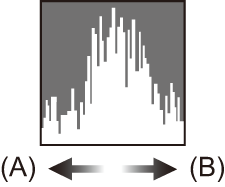
This displays the histogram. Turning this [ON] displays the histogram transition screen. Press
By looking at the distribution of the graph, you can determine the current exposure.
(A) Dark (B) Bright
– During exposure compensation – When the flash fires – When the standard exposure is not achieved, such as in low light situations.
– [Waveform Monitor]
|

[Photo Grid Line]
|
[ |
|
Sets the grid line pattern to be displayed on the recording screen. When using [
|
 ] / [
] / [ ] / [
] / [ ] /
] /  ] on the grid lines on the recording screen to move the position.
[Live View Boost]
|
[MODE1] / [MODE2] / |
|
|
[SET] |
[P/A/S/M] / |
|
Displays the screen brighter to make it easier to check subjects and compositions even in low-light environment. [MODE1]: Setting for low brightness, with priority given to a soft display. [MODE2]: Setting for high brightness, with priority given to image visibility.
– When adjusting the exposure (when the shutter button is pressed halfway, for example) – When recording a video – When using [Filter Settings] – When displaying the shutter speed effect of [Constant Preview] |
|
[Night Mode]
|
[Monitor] |
[ON] / |
|
[LVF] |
[ON] / |
|
Displays the monitor and viewfinder in red. In dark environments, this reduces brightness of the screen that can make the surroundings difficult to see. You can also set the luminance of the red display.
|
|
 .
.[LVF/Monitor Disp. Set]
|
[LVF Disp. Set] |
[ |
|
[Monitor Disp. Set] |
[ |
|
Selects whether to show the live view without covering the information display, or to display over the entire screen. [
[
|
|
|
[Horizontal Image Flip(Monitor)] |
|
|
[Vertical Image Flip(Monitor)] |
|
|
You can set whether the screen flips or not depending on the facing or angle of the monitor during recording. [Horizontal Image Flip(Monitor)] [AUTO]: The screen automatically flips horizontally according to the angle to which the monitor is opened or closed. [ON]: The screen is flipped horizontally all the time. [OFF]: Screen is not flipped. [Vertical Image Flip(Monitor)] [AUTO]: The screen automatically flips vertically according to the angle to which the monitor is rotated. [ON]: The screen is flipped vertically all the time. [OFF]: Screen is not flipped.
|
|
 ] /
] /  ]
]
[Expo.Meter]
|
[ON] / |
|
This displays the exposure meter.
|
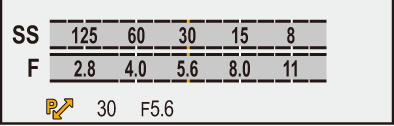
[Focal Length]
|
|
|
Displays the focal length on the recording screen during zoom control. |
[Blinking Highlights]
|
[ON] / |
|
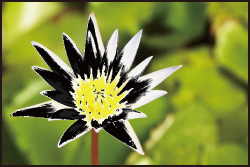
Overexposed areas appear blinking in black and white during Auto Review or playback.
Use this to delete the highlight display. ( |
[Sheer Overlay]
|
[ON] / |
|
|
[SET] |
[Transparency] |
|
[Image Select] |
|
|
[Reset at Power Off] |
|
|
[Disp. Image (shutter-press)] |
|
|
A picture that has been recorded or an image extracted from a video is overlayed on the recording screen.
– Video recording – [Stop Motion Animation] – [Auto Transfer(Wi-Fi)] |
|
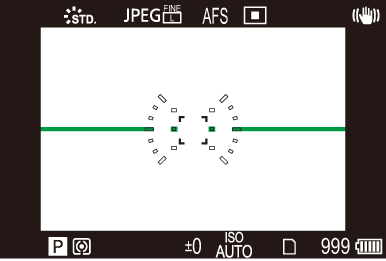
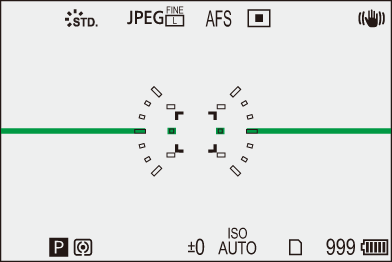
[Level Gauge]
|
|
|
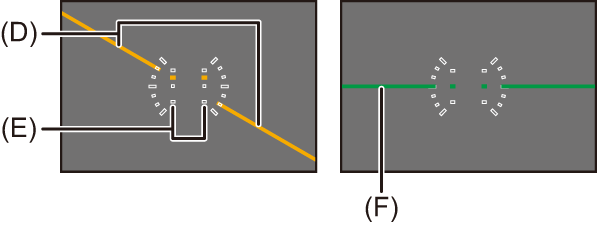
Displays the level gauge which is useful in correcting camera tilt.
(D) Horizontal (E) Vertical (F) Green (no tilt)
|

[Luminance Spot Meter]
|
[ON] / |
|
Specify any spot on the subject to measure the luminance over a small area. |
[Framing Outline]
|
[ON] / |
|
Displays the outline for the live view. |
[Show/Hide Monitor Layout]
|
[Control Panel] |
|
|
[Black Screen] |
|
|
Displays the control panel and black screen when switching between displays using [DISP.] button. ( |
|
[Live View Vertical Display]
|
|
|
When the camera is turned to the vertical, the screen also switches to a vertical display. |
[Custom] menu ([Monitor / Display (Video)])
|
|
[Log View Assist]
|
[LUT Select(V-Log)] |
|
|
[LUT View Assist (Monitor)] |
[ON] / |
|
[LUT View Assist (App)] |
[ON] / |
|
You can show images with LUT file applied on the monitor/viewfinder or smartphone. |
|
[HLG View Assist]
|
[Monitor] |
[MODE1] / |
|
At recording or playback of HLG video, this displays images with converted color gamut and brightness on the camera monitor/viewfinder. |
|
[Monochrome Live View]
|
[ON] / |
|
You can display the recording screen in black and white.
|
[Center Marker]
|
[ |
|
The center of the recording screen will be displayed as [+]. The shape of the marker can be changed. |
 ] / [
] / [ ] / [
] / [ ] / [
] / [ ] /
] / [Safety Zone Marker]
|
[ |
||
|
[SET] |
[Size] |
[95%] |
|
|
||
|
[80%] |
||
|
This displays the safety zone, which shows a guide to the area that would be shown on a household TV, on the recording screen. |
||
 ] / [
] / [ ] /
] / [Frame Marker]
|
[ON] / |
|
|
[SET] |
[Frame 1] |
|
[Frame 2] |
|
|
[Frame 3] |
|
|
[Frame Mask] |
|
|
[Live View Frame Adjustment] |
|
|
A frame with the set aspect ratio is displayed on the recording screen. |
|
[Zebra Pattern]
|
[ZEBRA1] / [ZEBRA2] / [ZEBRA1+2] / |
|
|
[SET] |
[Zebra 1] |
|
[Zebra 2] |
|
|
Parts that are brighter than the base value are displayed with stripes. |
|
[Waveform Monitor]
|
[ON] / |
|
This displays the waveform monitor on the recording screen. |
[Red REC Frame Indicator]
|
[ON] / |
|
A red frame is displayed on the recording screen that indicates that video is being recorded. |
[Custom] menu ([Lens / Others])
|
|
[Lens Focus Resume]
|
[ON] / |
|
The camera saves the focus position when you turn it off. |
[Lens Retraction]
|
|
|
This retracts the lens barrel a little while after you switch to the playback screen. |
[Control Ring Setting During AF]
|
|
|
|
Sets the function assigned to the control ring when the camera is in AF mode. |
[Control Ring Focus Control(MF)]
|
|
|
|
Sets the amount of focus movement by the control ring when the camera is in MF mode. [NON-LINEAR]: Focus responds by accelerating according to rotation speed of the control ring. [LINEAR]: Focus responds at a constant amount according to the rotational angle of the control ring. [SET]: Sets the rotational angle of the control ring for when [LINEAR] is selected. |
[Vertical Position Info (Video)]
|
|
|
You can set whether or not to record the camera’s vertical orientation information during video recording. [ON]: Records vertical orientation information. Videos recorded with the camera held vertically will be automatically played back vertically on the PC, smartphone, etc. during playback. [OFF]: Does not record vertical orientation information.
|