
Main Assist Functions
|
|

[Flicker Decrease (Video)]





When recording video in [ ] mode, you can fix the shutter speed to mitigate the flickering and horizontal stripes that appear in videos.
 This can be set when [Auto Exposure in Photo Mode] is [ON]. (
 [Auto Exposure in Photo Mode])
-
Set to [
] mode.
-
Set [Flicker Decrease (Video)].


 [
[ ] [
] [ ] [Flicker Decrease (Video)]
[1/50]/[1/60]/[1/100]/[1/120]
[OFF]
|
|

[Waveform Monitor]




This displays the waveform monitor on the recording screen. You can change the size of the waveform display.
-
Set [Waveform Monitor].
[ ] [
] [ ] [Waveform Monitor]
[ON]
Displays a waveform.
[OFF]
-
Select the position to display.
Press 


 to select and then press .
You can also move using touch operations.
You can rotate  to change the size of the waveform.
To return the waveform position back to the center, press [DISP.]. Pressing [DISP.] once again returns the size to the default setting.
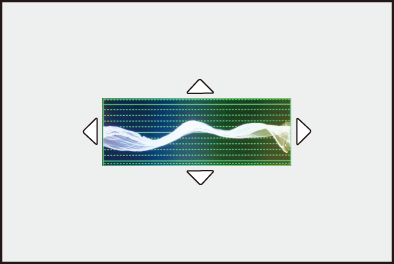
 Screen Displays
Waveform
The waveform displayed on the camera indicates the luminance as values based on the conversions below:
0 % (IRE ): Luminance value 16 (8 bit)/64 (10 bit)
100 % (IRE): Luminance value 235 (8 bit)/940 (10 bit)
-
IRE: Institute of Radio Engineers
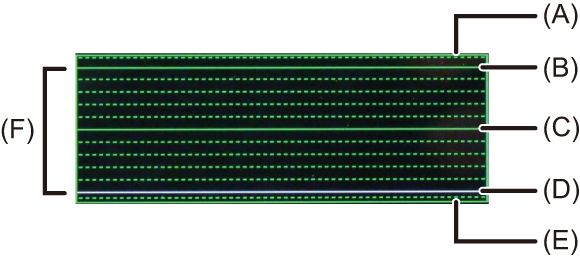
(A) 109 % (IRE) (Dotted line)
(B) 100 % (IRE)
(C) 50 % (IRE)
(D) 0 % (IRE)
(E) −4 % (IRE) (Dotted line)
(F) The range between 0 % and 100 % shows dotted lines at intervals of 10 %.
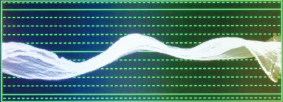
Display example)
|
|
[Luminance Spot Meter]
Specify any spot on the subject to measure the luminance over a small area.
-
Set [Luminance Spot Meter].
[] [] [Luminance Spot Meter] [ON]
-
Select the position where you want to measure the luminance.
Press to select and then press .
You can also change the position by dragging the frame on the recording screen.
To return the position back to the center, press [DISP.].
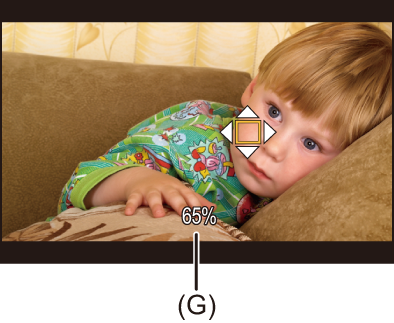
(G) Luminance value
Measurement Range
Measuring is possible in the range −7 % to 109 % (IRE).
When [Photo Style] is set to [V-Log], this is measured with “Stop” units. (18 % gray output level is calculated as 0 Stop)
[Zebra Pattern]
Parts that are brighter than the base value are displayed with stripes.
You can also set the base value and the breadth of the range so that the stripes are displayed on parts that are within the range of brightness you specify.

[ZEBRA1]
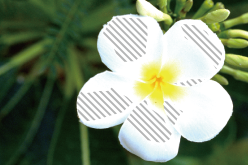
[ZEBRA2]

[ZEBRA1+2]
[] [] Select [Zebra Pattern]
|
[ZEBRA1] |
Parts that are brighter than the base value are displayed with [ZEBRA1] stripes. |
|
|
[ZEBRA2] |
Parts that are brighter than the base value are displayed with [ZEBRA2] stripes. |
|
|
[ZEBRA1+2] |
Both [ZEBRA1] and [ZEBRA2] are displayed. |
|
|
[OFF] |
— |
|
|
[SET] |
Sets the base brightness. |
|
|
[Zebra 1] |
[50%] to [105%]/[BASE/RANGE] |
|
|
[Zebra 2] |
[50%] to [105%]/[BASE/RANGE] |
|
When [BASE/RANGE] Was Selected with [SET]
Centered on the brightness set with [Base Level], parts with the brightness in the range set in [Range] are displayed with the stripes.
[Base Level] can be set in the range between 0 % and 109 % (IRE).
[Range] can be set in the range between ±1 % and ±10 % (IRE).
When [Photo Style] is set to [V-Log], this is measured with “Stop” units. (18 % gray output level is calculated as 0 Stop)
|
|
[Frame Marker]
A frame with the set aspect ratio is displayed on the recording screen. (Maximum 3) This allows you to see during recording the angle of view that will be achieved with trimming (cropping) in post-processing.
[] [] Select [Frame Marker]
|
[ON] |
Displays the frame on the recording screen. |
|
|
[OFF] |
— |
|
|
[SET] |
[Frame 1] |
Refer to “[Frame 1]/[Frame 2]/[Frame 3] Settings”. |
|
[Frame 2] |
||
|
[Frame 3] |
||
|
[Frame Mask] |
Sets the opacity of the outside of the frame. [100%]/[75%]/[50%]/[25%]/[OFF] |
|
|
[Live View Frame Adjustment] |
When set to [ON], the [Change Size/Position] setting screen is displayed when you touch a frame in the recording screen. [ON]/[OFF] |
|
[Frame 1]/[Frame 2]/[Frame 3] Settings
|
[Frame Aspect] |
Sets the aspect ratio of the frame. [2.39:1]/[2.35:1]/[2.00:1]/[17:9]/[1.85:1]/[16:9]/[3:2]/[4:3]/[5:4]/[7:6]/[1:1]/[6:7]/[4:5]/[3:4]/[2:3]/[9:16]/[9:17]/[CUSTOM]/[OFF] |
|
|
[Frame Color] |
Sets the color of the frame. |
|
|
[Change Size/Position] |
Sets the size and position of a frame. |
|
When [Change Size/Position] Is Selected
You can change the size and position of the frame while maintaining the aspect ratio of the frame.
You can change the height, width, and position of the frame if you select [CUSTOM] in [Frame Aspect]. (The Setting Method for [CUSTOM] in [Frame Aspect])
Press to move the center position.
Set the size with [ ] or [].
The position of the frame can be moved by dragging the center frame inside the frame in the recording screen. The size of the frame can be changed by dragging the frame at the top right of the frame.
Press [Q] to switch the frame to be changed.
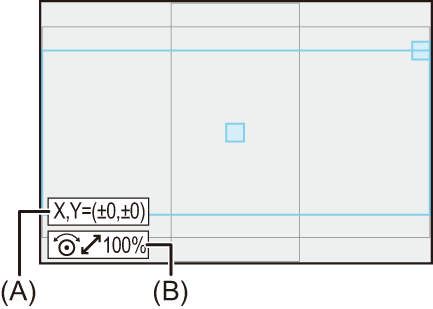
(A) Center coordinates (0 being the center of the screen)
(B) Frame size
Frame size can be set in the range between 20 % and 100 %.
The first press of [DISP.] returns the frame position to the center.
The second press returns the frame size to the default.
The Setting Method for [CUSTOM] in [Frame Aspect]
The [CUSTOM] setting in [Frame Aspect] is performed with [Change Size/Position].
-
Select [SET] in the [Frame Marker] menu.
-
Select one of [Frame 1] to [Frame 3] and then select [CUSTOM] in [Frame Aspect].
-
Select [Change Size/Position].
Press to move the center position.
Set the height of the frame with [], and the width with [].
The position of the frame can be moved by dragging the center frame inside the frame in the recording screen. The height and width of the frame can be changed by dragging the frame at the top or right edge of the frame.
Press [Q] to switch the frame to be changed.
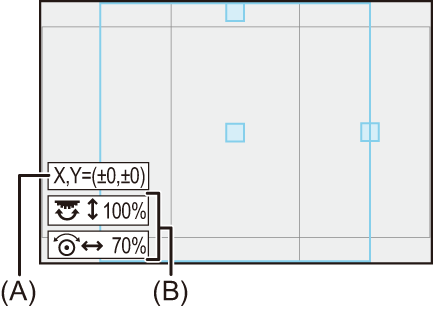
(A) Center coordinates (0 being the center of the screen)
(B) Height and width of the frame
Height and width of the frame can be set in the range between 20 % and 100 %.
The first press of [DISP.] returns the frame position to the center.
The second press returns the height and width of the frame to the default.