
Fn Switch
 Registering a Function to the Fn Switch
You can assign a function and register its setting values to the Fn switch.
You can easily switch between the setting values of the function you have registered.
Registering a Function to the Fn Switch
-
Select [Fn Switch Setting].

 [
[ ] [
] [ ] [Fn Switch Setting]
-
Set [Select Function to Assign] and [Setting Value for 1] / [Setting Value for 2] / [Setting Value for 3].
|
[Select Function to Assign] |
Items that can be set in [Setting Value for 1] / [Setting Value for 2] / [Setting Value for 3] |
|
[Step Zoom] |
[24mm] / [28mm] / [35mm] / [50mm] / [70mm] / [75mm] / [Cr85mm]
When [Crop Zoom(Photo)] / [Crop Zoom(Video)] is [OFF], the setting value becomes [75mm] even when you change the Fn switch position. |
|
[Photo Style] |
|
|
[REAL TIME LUT] |
You can set a LUT file that has been registered in the [LUT Library]. |
|
[Aspect Ratio] |
[4:3] / [3:2] / [16:9] / [1:1] |
|
[Detecting Subject] |
[ |


 ] / [
] / [ ] / [
] / [ ] / [
] / [ ] / [
] / [ ] / [
] / [ ] / [
] / [ ] / [
] / [ ] / [
] / [ ] / [
] / [ ] / [
] / [ ] / [
] / [ ] / [
] / [ ] / [OFF]
Using the Fn Switch
By setting the Fn switch to the desired position, you can switch to the setting value for the registered function.
Set the Fn switch to the desired position.
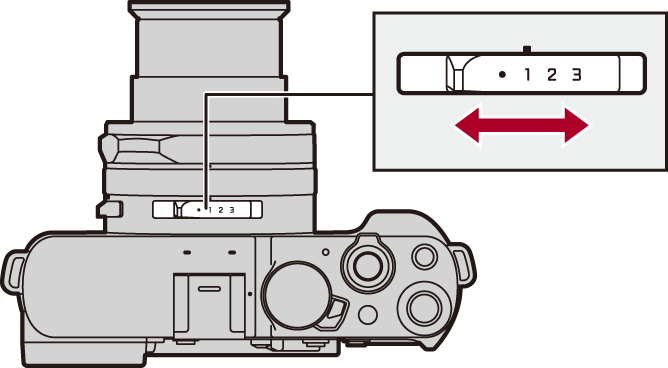
|
|
The registered function operates according to the setting values set in the menus, etc. |
|
1 |
The registered function operates using the setting value assigned with [Setting Value for 1]. |
|
2 |
The registered function operates using the setting value assigned with [Setting Value for 2]. |
|
3 |
The registered function operates using the setting value assigned with [Setting Value for 3]. |
