
 [Setup] Menu
 [Setup] menu ([Monitor / Display])
[Setup] menu ([Card/File])
|
|

[Card Format]
|
Formats the card (initialization). Format the cards with the camera before use.
Save a backup of necessary data before formatting the card.
|
 When a card is formatted, all of the data stored in the card is erased and cannot be restored.
[Folder / File Settings]
|
[Select Folder] / [Create a New Folder] / [File Name Setting] |
|
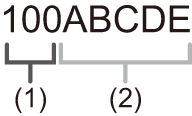
Set the folder and file name where to save the images. Folder name
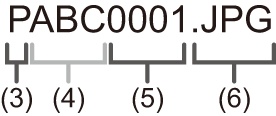
File name
[Select Folder]: Selects a folder for storing images. [Create a New Folder]: Creates a new folder with an incremented folder number.
[OK]: Increments the folder number without changing the 5-character user-defined segment ((2) above). [Change]: Changes the 5-character user-defined segment ((2) above). This will also increment the folder number. |
|
[File Name Setting] [Folder Number Link]: Uses the 3-character user-defined segment ((4) above) to set the folder number ((1) above). [User Setting]: Changes the 3-character user-defined segment ((4) above).
Available characters: alphabetic characters (upper-case), numerals, [ _ ]
If you change the storage folder, a number continuing on from the last file number will be assigned.
– The number of files in the current folder reaches 1000. – The file number reaches 9999.
We recommend backing up your data and formatting the card. |
[File Number Reset]
|
Refresh the folder number within the DCIM folder and reset the file number to 0001.
We recommend backing up your data and formatting the card.
|
[Copyright Information]
|
[Artist] |
[ON] / |
|
[Copyright Holder] |
[ON] / |
|
[Display Copyright Info.] |
|
|
Records the names of the artist and the copyright holder in the image Exif data.
How to enter characters (
|
|
[Setup] menu ([Monitor / Display])
|
|
[Power Save Mode]
|
[Sleep Mode] |
[10MIN.] / [5MIN.] / [2MIN.] / |
|
[Auto LVF/Monitor Off] |
[5MIN.] / [2MIN.] / |
|
[Power Save LVF Shooting] |
[Time to Sleep] |
|
[Method of Activation] |
|
|
This is a function to automatically turn the camera to sleep (power save) status or turn off the viewfinder/monitor if no operation is performed for a set time. |
|
[Thermal Management]
|
[Recording Max Temperature] |
[HIGH] / |
|
This sets the temperature during video recording at which the camera automatically stops recording. When set to [HIGH], recording continues even if the camera temperature rises. [Recording Max Temperature] [HIGH]: Sets the temperature at which recording is stopped due to the camera temperature rising to a higher temperature.
Use a tripod, etc., because recording with a handheld camera for long periods can cause low temperature burns. [STANDARD]: Recording stops when the camera temperature rises.
|
|
[Menu Color]
|
[NORMAL] / |
|
(Supported by -N model only) Sets the color of the menu screen. |
[Monitor Frame Rate]
|
|
|
Sets the display speed for live view on the monitor. [30fps]: Reduces the power consumption for a longer operating time. [60fps]: Enables smooth display of movements.
|
[Monitor Settings]/[Viewfinder]
|
[Brightness] / [Contrast] / [Saturation] / [Red Tint] / [Blue Tint] |
|
This adjusts the brightness, coloring, and red or blue tints of the monitor/viewfinder.
|


 to confirm the setting.
[Monitor Backlight]/[LVF Luminance]
|
|
|
Adjusts monitor/viewfinder luminance. [AUTO]: The brightness is adjusted automatically depending on how bright it is around the camera.
|
[Eye Sensor]
|
[Sensitivity] |
|
|
This will set the sensitivity of the eye sensor. |
|
|
[LVF/Monitor Switch] |
|
|
This will set the method for switching between the viewfinder and monitor.
|
|
[Level Gauge Adjust.]
|
[Adjust.] |
|
Hold the camera in a horizontal position, and press |
|
[Level Gauge Value Reset] |
|
Restores the default level gauge setting. |
[Setup] menu ([IN/OUT])
|
|
[Beep]
|
[Beep Volume] |
[ |
|
[AF Beep Volume] |
[ |
|
[AF Beep Tone] |
|
|
[Shutter Vol.] |
[ |
|
[Shutter Tone] |
|
|
Sets the beep sounds, AF beep, and shutter sounds. |
|
 ] (High) /
  ] (Low) / [
 ] (Off)
 ] (High) /
  ] (Low) / [
 ] (Off)
 ] (Pattern 1) / [
 ] (Pattern 2) / [
 ] (Pattern 3)
 ] (High) /
  ] (Low) / [
 ] (Off)
 ] (Pattern 1) / [
 ] (Pattern 2) / [
 ] (Pattern 3)
[Sound Monitoring Channel(Play)]
|
|
|
During video playback, this selects the audio channel output to the speaker on the camera.
|
[Wi-Fi®]
|
[Wi-Fi Frequency Bands] |
|
|
[Device Name/Password] |
|
|
[Wi-Fi Function Lock] |
|
|
[Network Address] |
|
|
Makes settings for Wi-Fi. ( |
[Bluetooth®]
|
[Bluetooth Function] ( |
|
|
[Pairing] |
[Add Smartphone] |
|
[Gimbal] |
|
|
[Delete] |
|
[LUMIX Lab]
|
[Send Image (Smartphone)] ( |
|
|
[Auto Transfer(Wi-Fi)] ( |
|
|
[Location Logging] ( |
[USB]
|
[USB Mode] |
|
|
This sets the communication method to be used when the USB connection cable is connected. [ [ [ [ |
|
|
[USB Power Supply] |
|
|
Provides power from the USB connection cable.
|
|
|
[Webcam Image Quality] |
[4K/15p] / [4K/12.5p] / [FHD/60p] / [FHD/50p] / [FHD/30p]
|
|
Sets the image quality when using the camera as a web camera.
|
|
 ] [Select on connection] / [
 ] [PC(Storage)] / [
 ] [PC(Webcam)] / [
 ] [LUMIX Lab]
[Network Connection Light]
|
|
|
This will turn on the network connection light. |
[Setup] menu ([Setting])
[Save to Custom Mode(Photo)]/[Save to Custom Mode(Video)]/[Save to Custom Mode(S&Q)]
|
[C1] / [C2] / [C3] / [C4] / [C5-1] to [C5-10] |
|
You can register the currently set information of the camera. |
[Load Custom Mode(Photo)]/[Load Custom Mode(Video)]/[Load Custom Mode(S&Q)]
|
[C1] / [C2] / [C3] / [C4] / [C5-1] to [C5-10] |
|
Calls up registered Custom mode settings to the selected recording mode and overwrites the current settings with these. |
[Custom Mode Settings]
|
[Limit No. of Custom Mode] |
|
[Edit Title] |
|
[How to Reload Custom Mode] |
|
[Select Loading Details] |
|
Sets the ease of use of Custom mode. |
[Save/Restore Camera Setting]
|
[Save] / [Load] / [Delete] / [Keep Settings While Format] |
|
Saves the camera’s settings information to the card. Saved settings information can be loaded to the camera, letting you set the same settings on multiple cameras. [Save]: Saves the camera’s settings information to the card.
[OK]: Saves using the file name on the screen. [Change the file name]: Changes the file name and saves the file.
[Load]: Loads the settings information on the card and copies it to the camera. [Delete]: Deletes settings information on the card. [Keep Settings While Format]: When formatting the card, formats the card while keeping camera settings information stored on the card.
|
[Reset]
|
Returns the camera to its default settings. ( |
[Setup] menu ([Others])
[Clock Set]
|
Sets the date and time. |
[Time Zone]
|
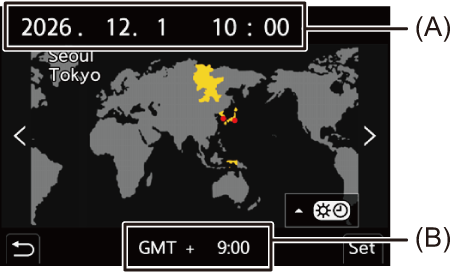
Sets the time zone. Press
(A) Current time (B) Time difference from GMT (Greenwich Mean Time)
To return to the normal time, press |
 ], press
 [System Frequency]
|
[59.94Hz (NTSC)] / [50.00Hz (PAL)] / [24.00Hz (CINEMA)]
|
|
This changes the system frequency of videos that are recorded and played back with the camera. |
[Pixel Refresh]
|
[Now] |
|
|
[Auto] |
|
|
This optimizes the image sensor and image processing. [Now]: Starts a Pixel Refresh immediately. Turn the camera off and on after it is finished. [Auto]: Starts a Pixel Refresh automatically when the power is turned off after a certain time has elapsed.
|
|
[Language]
|
This set the language displayed on the screen.
|
 ] from the menu icons to set the desired language.
[Firmware Version]
|
[Firmware Update] / [Software info] |
|
You can check the firmware version. In addition, you can update the firmware, and display information about the camera software. [Firmware Update]: Updates firmware.
[Software info]: Displays information about the camera software.
|
[Approved Regulations]
|
Displays the authentication information, etc.
|