
Connecting to “LUMIX Lab” (USB Connection)
-
On the smartphone, start up “LUMIX Lab”.
-
View the content in the displayed guidance and start using the app.
-
Switch to the [Camera] screen and select [Add Camera].
-
Select [Connect via USB].
-
Connect the camera and Smartphone with the USB connection cable (commercially available).
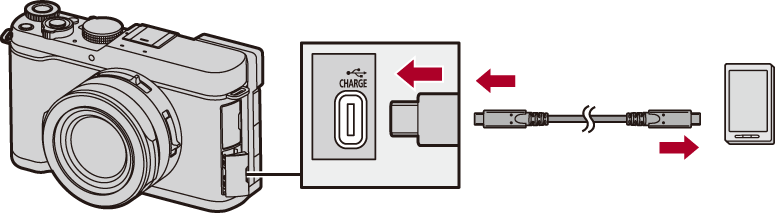
-
Press

 to select [LUMIX Lab] and then press
  .
.
 [
[ ] is displayed on the camera’s screen.
 If a confirmation message appears on the smartphone screen asking for permission to enable access by the connected device, grant permission. Connection is not complete until permission is given.
Please also refer to the operating instructions of your smartphone.
-
Select [Next] on the smartphone.
|
– [Auto Transfer(Wi-Fi)] – [Remote shooting] – [Shutter Remote Control] |


