
Basic Video Operations





This camera is capable of recording video in a variety of resolutions.
It also supports switching of the system frequency and the [MP4(Lite)], [MP4], and [MOV] recording file formats.
-
Set to [
 ] or [S&Q] mode.
 Switch the photo/video/S&Q switch. (
 Photo/Video/S&Q Switch)
 Video recording is still possible in [
 ] mode, but there are limitations, such as being unable to change exposure and audio settings using touch operations. (Limitations on Video Recording in Photo Mode)
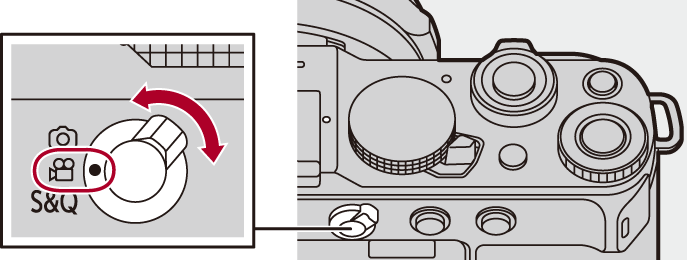
-
Select the recording mode ([iA]/[P]/[A]/[S]/[M]).
Set the mode dial. (Selecting the Recording Mode)
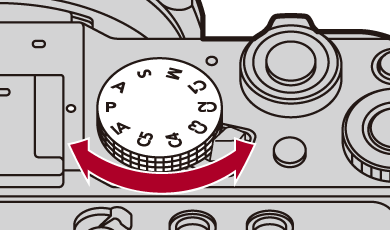
-
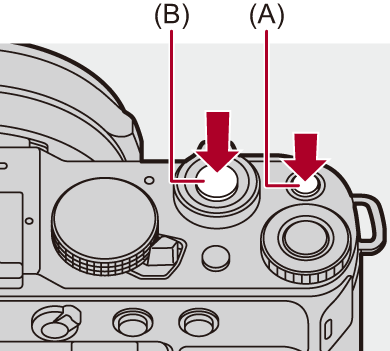
Start recording.
Press the video rec. button (A).
In []/[S&Q] mode, you can also perform the same operation by pressing the shutter button (B) fully.
Release the video rec. button right after you press it.
The recording state indication (C) and card access indication (D) turn red while videos are being recorded.
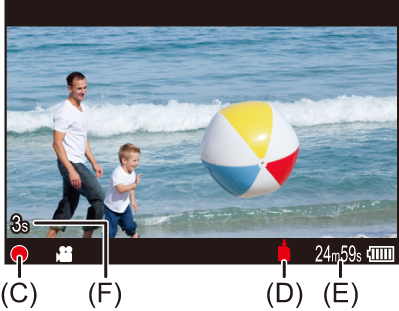
(E) Video recording time
(F) Elapsed recording time
“h” is an abbreviation for hour, “m” for minute and “s” for second.
-
Stop recording.
Press the video rec. button (A) again.
In []/[S&Q] mode, you can also perform the same operation by pressing the shutter button (B) fully.
|
|

 Operations During Video Recording
In []/[S&Q] mode, you can change the exposure and audio settings with touch operations to prevent operation sounds from being recorded.
|
Set [Touch Tab] to [ON] in [Touch Settings] in the [Custom] ([Operation]) menu. ( |

-
Touch [
 ] or [
 ].
].
-
Touch an icon.
 Aperture value
 Shutter speed
 Exposure compensation
 ISO sensitivity
 Sound recording level adjustment
This setting is available only in [] mode.
 Slow & Quick setting
This setting is available only in [S&Q] mode. (The setting cannot be changed during recording)
-
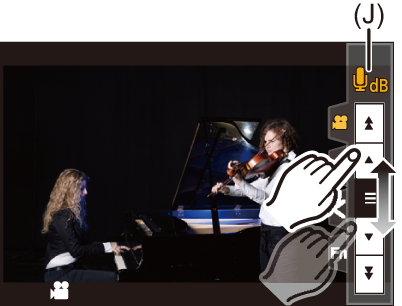
Drag the slide bar to set the item.
[ ]/[
]/[ ]: Changes the setting slowly.
[ ]/[
]/[ ]: Changes the setting quickly.
If you touch icon (J), the screen of Step 2 is redisplayed.
Exposure Control While Video Recording
Videos will be recorded using the aperture value, shutter speed, and ISO sensitivity settings below.
|
Recording mode |
Aperture value/shutter speed/ISO sensitivity |
|
|
[iA] |
The camera automatically makes the settings to suit the scene. ( |
|
|
[P]/[A]/[S]/[M] |
[ |
The settings vary depending on the [Exposure Control(Video Mode)] ([Exposure Control in P/A/S/M]) in the [Custom] ([Image Quality]) menu. The default setting is [MODE DIAL]. ( [MODE DIAL]: Switch the [P]/[A]/[S]/[M] mode to match the mode dial. [P]/[A]/[S]/[M]: Recording is done in the set mode irrespective of the mode dial. |
|
[ |
The settings vary depending on the [Auto Exposure in Photo Mode] in the [Custom] ([Image Quality]) menu. The default setting is [ON]. ( [ON]: Records with values set automatically by the camera. [OFF]: Records with manually set values. |
|
Size Interval for Dividing Files
A new file will be created to continue recording if the continuous recording time or the file size exceeds the following conditions.
(A) Using an SDHC memory card
(B) Using an SDXC memory card
Limitations on Video Recording in Photo Mode
There are the following limitations when recording video in the [] mode:
Recording cannot be started or stopped with the shutter button.
Exposure and audio settings cannot be changed with touch operations.
[Video] menu items such as [Rec. File Format(Video)] and [Rec Quality] cannot be set. Set these in the [] mode beforehand.
When the [Rec. File Format(Video)] is [MOV], recording with the following [Rec Quality] is not possible: 
– [Rec Quality] with resolutions 5.6K/5.2K/4.4K
– [Rec Quality] exceeding a recording frame rate of 100.00p
-
If a [Rec Quality] with above conditions is set when in [
] mode, then in [] mode the [Rec Quality] switches automatically to the following:
– When the [Rec. File Format(Video)] is [MOV]
[4K/30p/420/10-L] ([System Frequency]: [59.94Hz (NTSC)])
[4K/25p/420/10-L] ([System Frequency]: [50.00Hz (PAL)])
[4K/24p/420/10-L] ([System Frequency]: [24.00Hz (CINEMA)])
|
– Record the video about 3 seconds longer, and then divide the last part of the video using [Video Divide] in the [Playback] ([Edit Image]) menu.
If you experience any of these, play them back on the camera.
– [Time Lapse Shot] – [Stop Motion Animation] For information about the high temperature display
|
|
(
( |

 ] appears blinking on the screen. If you continue to use the camera, a message indicating use is not possible is displayed on the screen and some functions, such as recording, will be stopped, and [