
Method for Connecting with “LUMIX Lab” Added
It is now possible to connect the camera to a smartphone with a USB connection cable (commercially available) and use “LUMIX Lab” to control the camera.
The smartphone can be used to control the camera by registering the camera in “LUMIX Lab” with a Bluetooth connection and USB connection.
 Sending Images on the Camera to a Smartphone with Simple Operations (USB Connection)
Connecting to “LUMIX Lab”
 Connecting to a Smartphone (Bluetooth Connection)
-
On the smartphone, start up “LUMIX Lab”.

-
View the content in the displayed guidance and start using the app.
-
Switch to the [Camera] screen and select [Add Camera].

(A) [Add Camera]
-
Select [Connect via Bluetooth].
-
Set the camera to Bluetooth pairing standby state.

 [
[ ] [
] [ ] [Bluetooth] [Bluetooth Function] [ON]
 The camera enters the pairing standby state.
If there is a paired smartphone, the camera enters the connection standby state. If you want to pair with a new smartphone, use the following procedure to put the camera in the pairing standby state.
[] [] [Bluetooth] [Pairing] [Add New Device]
-
Select the camera to be connected in “LUMIX Lab”.
Pairing is executed when you select [Pairing] in the confirmation screen.
Connecting to a Smartphone (USB Connection)
-
On the smartphone, start up “LUMIX Lab”.
-
View the content in the displayed guidance and start using the app.
-
Switch to the [Camera] screen and select [Add Camera].
-
Select [Connect via USB].
-
Connect the camera and Smartphone with the USB connection cable (commercially available).
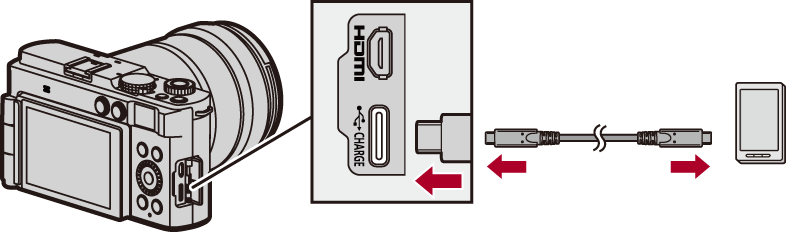
-
Press

 to select [LUMIX Lab] and then press .
[ ] is displayed on the camera’s screen.
If a confirmation message appears on the smartphone screen asking for permission to enable access by the connected device, grant permission. Connection is not complete until permission is given.
Please also refer to the operating instructions of your smartphone.
-
Select [Next] on the smartphone.
|
– [Auto Transfer(Wi-Fi)] ( – [Remote shooting] – [Shutter Remote Control] |


Sending Images on the Camera to a Smartphone with Simple Operations (USB Connection)
You can now transfer images to a smartphone even when connected by USB by pressing [Q] during playback.
Also read “Sending Images on the Camera to a Smartphone with Simple Operations”. ( Sending Images on the Camera to a Smartphone with Simple Operations)
When using a Bluetooth connection, after selecting the image, select either [Send via Wi-Fi] or [Send via USB(LUMIX Lab)].
Connection via Wi-Fi is automatic when [Send via Wi-Fi] is selected.
Notes about the [Send Image (Smartphone)] Menu
The procedure has been changed to the following:
[] [] [LUMIX Lab/Sync] [Send Image (Smartphone)]
Settings: [Single Select]/[Multi Select]