
Setting of time data
The unit provides time code, user bits, and date and time (real time) data as time data, and records in each frame synchronized with the video. The time data is also recorded as the clip meta data.

Definition of time data
 Time code
[FREE RUN] and [REC RUN] can be switched with the [RECORDING] menu  [TC/UB] [FREE/REC RUN].
[FREE RUN]:
Advances regardless of the operation mode. It is advancing even when the power is turned off, so it can be treated equally as time.
[REC RUN]:
Advances only while recording. Recording is started with the value continuing from the last time code recorded previously.
|
– When deleting recorded clips – When recording is interrupted due to a malfunction of [REC WARNING], etc. during recording.
|
User bits
User bits are built-in. User bits are recorded in the clip.
The user setting value, time, date, time code, and frame rate information of shooting, and the clip name can be selected for recording.
The value at the time when the recording has started is recorded in the user bits of the clip meta data.
Counter
When you display the counter by either pressing the USER button assigned to [COUNTER] or touching the USER button icon, the counter value is displayed in the time code display area of the viewfinder/LCD monitor screen.
Counter value is displayed as “hour:minute:second.frame”.
Furthermore, while the counter value is being displayed, you can reset the counter value by either pressing the USER button assigned to [RESET] or touching the USER button icon.
Either of the following settings can be set in the [RECORDING] menu [REC COUNTER].
[TOTAL]:
Counting continues cumulatively until the counter value is reset. The counter value will be maintained even if the memory card is replaced or the power is turned off.
[CLIP]:
Clears the counter value and starts counting from 0 each time recording starts. You can shoot while always checking the recording time of the clip you are currently shooting.
Date/time (real time)
 The internal clock is the standard while the power is turned off for the free run time code count, the user bits time, and the date data. Also, it will be the reference for the file generation time and file name when the clip is recorded.
The free run time code is reset if the built-in battery is exhausted.
|
|
User bits settings
Set the user bits to be recorded.
-
Select the user bits to record in the [RECORDING] menu
[TC/UB] [UB MODE].
[FRAME RATE]:
Records the frame rate information of the shooting.
Use with this setting when using the frame rate information of the user bits with an editing device such as a computer.
[USER]:
Records the user bits set in the [RECORDING] menu [TC/UB] [UB PRESET]. The setting value is maintained even if the power is turned off.
For detailed setting procedures ( How to input user bits)
[TIME]:
Records the hour, minute, and second of the date and time measured with the internal clock.
[DATE]:
Records the last 2 digits of year, month, date, and hour of the date and time measured with the internal clock.
[TC]:
Records the value for the time code as users bits.
[CLIP NAME]:
Records the value that CAM INDEX (one character) and CARD COUNT (3-digit number) both converted to ASCII character code.
How to input user bits
By setting user bits, information such as memos (date, time) up to 8 digits long (hexadecimal) can be recorded.
-
Select the [RECORDING] menu
[TC/UB] [UB MODE] [USER].
-
Select the [RECORDING] menu
[TC/UB] [UB PRESET].
The user bits setting screen is displayed.
-
Set the user bits.
Set 2 digits each.
You can reset to [00] by pressing the USER button assigned to [RESET].
-
Confirm the setting value of the user bits.
The setting value is confirmed when last 2 digits are set.
Memory function of the user bits
The setting content of the user bits is automatically recorded and maintained even if the power is turned off.
Frame rate information
The relationship between frame rate, image pull-down, time code, and user bits is as follows.
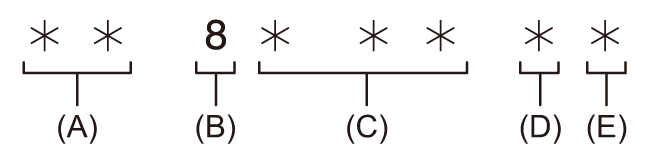
(A) Verification information on the right-hand 6 digits
(B) Fixed value
(C) Frame rate
(D) Camera video mode
(E) REC mark
Camera video mode
The display of the camera video mode differs depending on the setting of following menus.
The [SYSTEM] menu [REC FORMAT]
The [SYSTEM] menu [SUPER SLOW]
Setting the time code
-
Select the [SYSTEM] menu
[FREQUENCY] [59.94Hz]/[50.00Hz].
-
From the [SYSTEM] menu
[FILE FORMAT]/[REC FORMAT], select the recording format.
-
Select the [RECORDING] menu
[TC/UB] [DF/NDF] [DF]/[NDF].
[DF]:
Time code is compensated in accordance with the actual time. It is mainly used for broadcasting such as TV programs.
Time code display example: TCG 00:00:00.00
[NDF]:
It will not compensate the time code. (There will be a difference from the actual time)
Time code display example: TCG 00:00:00:00
-
Select the [RECORDING] menu
[TC/UB] [TC PRESET].
The [TC PRESET] screen is displayed.
-
Set the time code.
You can reset the time code to 0 by pressing the USER button assigned to [RESET].
-
Confirm the setting value of the time code.
The setting value is confirmed when last 2 digits are set.
Setting range of time code
The range of the time code that can be set differs depending on the frame rate of [REC FORMAT].
[SYSTEM] menu [FREQUENCY]
[SYSTEM] menu [REC FORMAT]
|
– When [FREQUENCY] is set to [50.00Hz] – When the frame rate of the [REC FORMAT] is 23.98p – When interval recording is enabled |
Time code function during battery replacement
The operation of the time code generator will continue by the backup mechanism functioning even when replacing the battery.
The time code of the free run may shift when any item in the [SYSTEM] menu [FREQUENCY], [FILE FORMAT], or [REC FORMAT] is changed.
After turning on the power again with the power button, check the time code and set again if necessary.
Time code in super slow recording
The time code is fixed to [REC RUN] when the super slow recording function is enabled.
The time code output from the <SDI OUT> terminal or the <HDMI> terminal proceeds at 1× speed starting at the same time as recording.
-
Available for use when using
