
Adjusting and setting the LCD monitor

Using the LCD monitor
This unit is equipped with a 3.5-inch LCD monitor. Use either the viewfinder or the LCD monitor depending on your purpose and the shooting conditions.

 /
/ is equipped with a viewfinder.
-
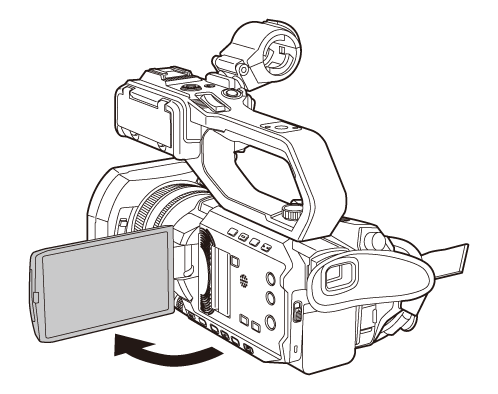
Open the LCD monitor.
The light goes on when the LCD monitor is opened. The light goes off when it is closed.
-
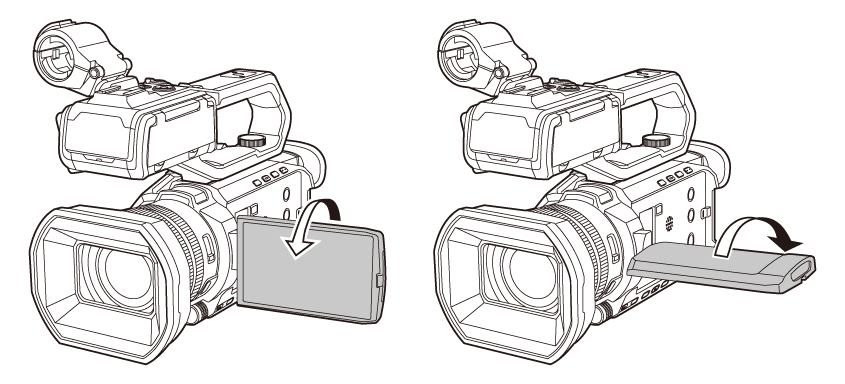
Turn the LCD monitor to a comfortable viewing angle.
It can be turned towards the lens by 180° and in the forward direction by 90°.
|
|
Adjusting the LCD monitor
 Adjusting brightness, contrast, color level, redness, and blueness
By setting the following items in the [VIDEO OUT/LCD/VF]/[VIDEO OUT/LCD] menu  [LCD], you can adjust items such as brightness and contrast for the LCD monitor:
[BRIGHTNESS]:
Adjusts the brightness.
[COLOR LEVEL]:
Adjusts the density of the colors.
[CONTRAST]:
Adjusts the contrast.
[RED TINT]:
Adjusts the strength of red.
[BLUE TINT]:
Adjusts the strength of blue.
The adjustments of the LCD monitor do not affect the images output or recorded by the camera.
Adjusting the backlight luminance
The following operations switch the luminance of the backlight of the LCD monitor:
Set with the [VIDEO OUT/LCD/VF]/[VIDEO OUT/LCD] menu [LCD] [BACK LIGHT].
Each time you either press the USER button assigned to [LCD BACKLIGHT] or touch the USER button icon, the brightness switches in the order [0], [1], [2], [-1].
Mirror shooting
When recording with the LCD monitor rotated towards the lens side, if the unit is set to the [VIDEO OUT/LCD/VF]/[VIDEO OUT/LCD] menu [LCD] [SELF SHOOT] [MIRROR], the image is displayed in reverse in left and right on the LCD monitor. This allows shooting as if looking at a mirror image. Note that only the display of the LCD monitor is horizontally reversed. The settings for mirror shooting do not affect the images output or recorded by the camera.