
Thumbnail operation

Thumbnail operation overview
A clip is a group of data recorded by a single shooting, which includes additional information such as image, audio, and meta data.
The following operations can be performed while viewing the clip thumbnails displayed on the LCD monitor.
 Playback
Delete
Protect (only the clips recorded in MOV/MP4/AVCHD)
(For the  )
)
Copy (only the clips recorded in P2/AVCHD)
Re-connect (only the clips recorded in AVC-I100/AVC-I50)
(For the  )
)
Copy (only the clips recorded in AVCHD)
You can do these operations either with the multidial or by touching the LCD monitor.
|
|
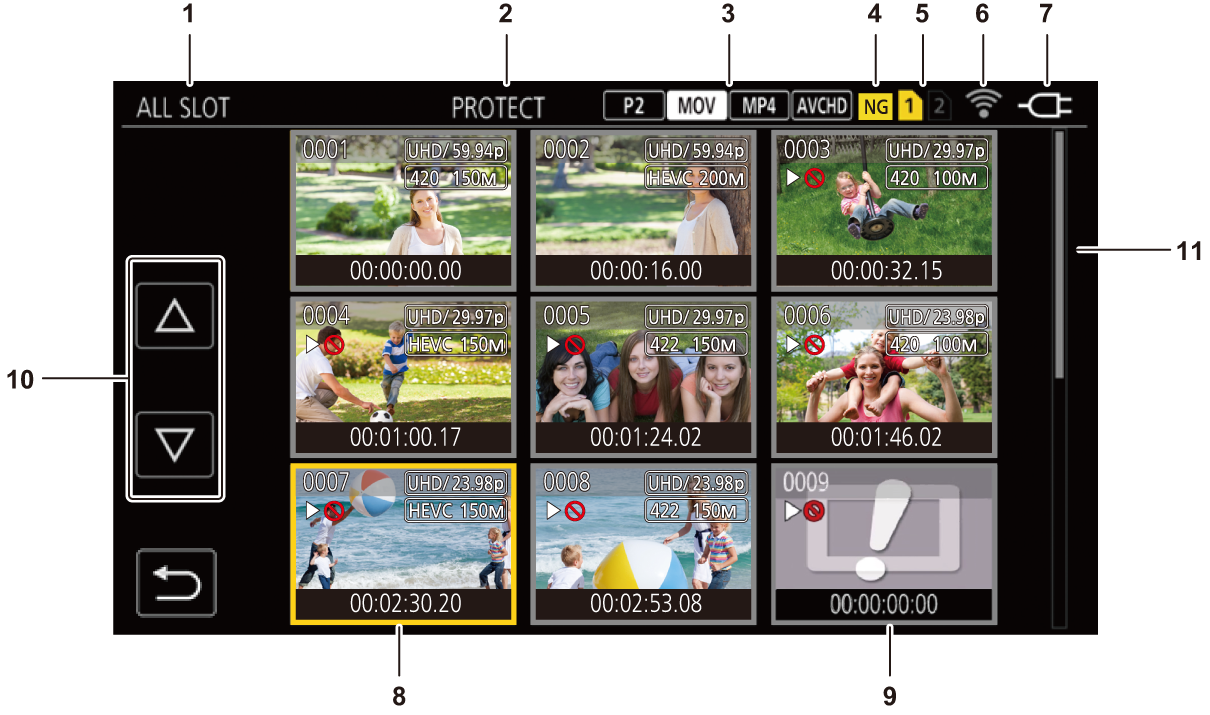
Thumbnail screen
Press the <THUMBNAIL> button to display the thumbnail screen while displaying the camera image screen.
Press the <THUMBNAIL> button again to display the camera image screen.
The clips in the recording file format selected in the [SYSTEM] menu  [FILE FORMAT] are displayed in the thumbnail screen.
When you press the <MENU> button while displaying the thumbnail screen, you can perform thumbnail screen menu operations.
When using , you can select the P2 recording file format.
-
Displayed when using
.
-
Clip status display
[ALL SLOT]:
Displays all the clips recorded on every memory card in each card slot. Displays in [ALL SLOT] when the thumbnail screen is displayed from the camera image screen.
[SLOT1]:
Displays only the clips recorded on the memory card in card slot 1.
[SLOT2]:
Displays only the clips recorded on the memory card in card slot 2.
[SLOT1→SLOT2]:
Displayed when copying from the memory card in card slot 1 to the memory card in card slot 2.
[SLOT2→SLOT1]:
Displayed when copying from the memory card in card slot 2 to the memory card in card slot 1.
[SAME FORMAT]:
Displays only the clips recorded in the same format as the system format.
Clips recorded in the same format are defined as those where the current setting status for each of the below items match.
– (For the )
[SYSTEM] menu [FREQUENCY]/[FILE FORMAT]/[REC FORMAT]/[AUDIO SAMPLE RES.]
– (For the )
[SYSTEM] menu [FREQUENCY]/[FILE FORMAT]/[REC FORMAT]
-
Function display
This is displayed during the operation of copy, delete, protect, etc.
-
File format

 :
:
Displayed when P2 is selected as the recording file format.
 :
:
Displayed when MOV is selected as the recording file format.
 :
:
Displayed when MP4 is selected as the recording file format.
 :
:
Displayed when AVCHD is selected as the recording file format.
 :
:
Displayed when MOV, MP4, or AVCHD is selected as the recording file format and when even one P2 clip is on any of the memory cards.
 :
:
Displayed when P2, MP4, or AVCHD is selected as the recording file format and when even one MOV clip is on any of the memory cards.
 :
:
Displayed when P2, MOV, or AVCHD is selected as the recording file format and when even one MP4 clip is on any of the memory cards.
 :
:
Displayed when P2, MOV, or MP4 is selected as the recording file format and when even one AVCHD clip is on any of the memory cards.
-
Defective clip status
 :
:
Displayed when P2 is selected as the recording file format and there is at least one defective P2 clip that may be repaired in the thumbnail screen.
 :
:
Displayed when P2 is selected as the recording file format and there is at least one defective P2 clip that cannot be repaired in the thumbnail screen.
(No display):
There is no defective P2 clip in the thumbnail screen.
-
Media status display
The card slot number of the memory card where the clip in the cursor position is recorded is displayed in yellow.
-
Displaying the connection status of the wired LAN, wireless LAN or USB tethering
Displays the connection status of the wired LAN, wireless LAN or USB tethering.
(No display):
It is not connected to the wired LAN, wireless LAN or USB tethering. It is set to the [NETWORK] menu [DEVICE SEL] [OFF].
 :
:
A status where the wireless LAN is set and ROP is not connected.
 :
:
A status where the wireless LAN is set, but the wireless LAN is not working correctly.
 :
:
A status where the wired LAN is set and ROP is not connected.
 :
:
A status where the wired LAN is set, but the wired LAN is not working correctly.
 :
:
A status where the USB tethering set and ROP is not connected.
 :
:
A status where USB tethering is set, but USB tethering is not working correctly.
-
Power status display
 :
:
Displays the remaining battery level while powered with the battery.
 :
:
Displayed when powered with the AC adaptor.
-
Cursor
-
Clip that cannot be played back
Displays when the clip cannot be played back in the unit such as standard violation.
-
Page switching button
Switches the page of the thumbnail screen.
[ ]:
]:
Moves to previous page
[ ]:
]:
Moves to next page
-
Scroll bar
Indicates which part of the whole thumbnail is currently being viewed.
|
When P2 is selected as the recording file format, a clip recorded over multiple memory cards is displayed as one clip. |
 Display of the clips in the thumbnail screen
-
Displayed when using
-
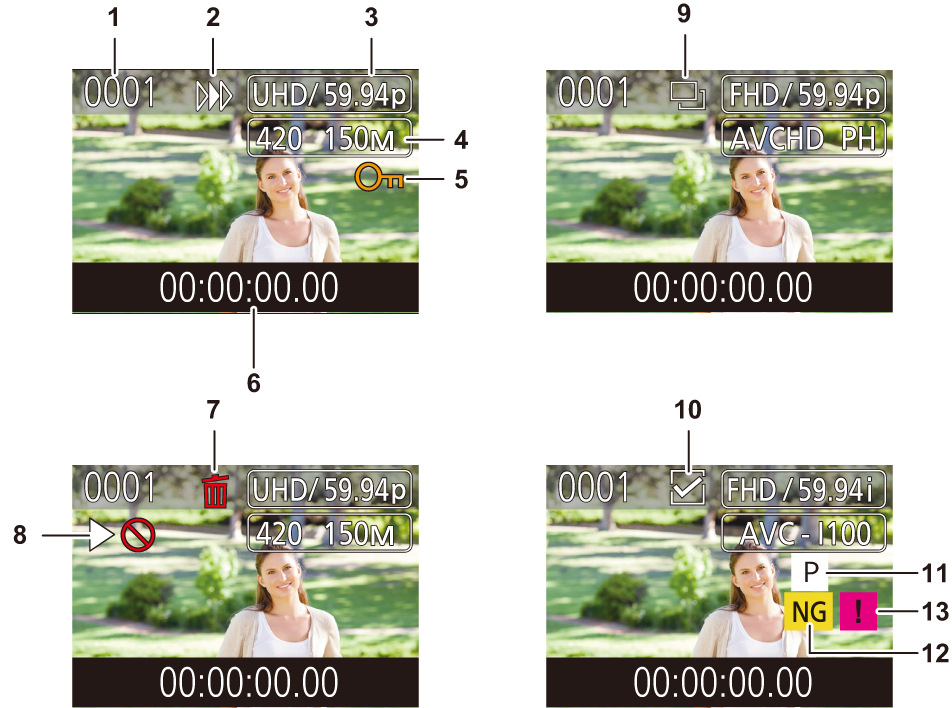
Thumbnail number
Displays the thumbnail number in [0001] to [9999].
Normally, the number assigned to the clip in the order of recording is displayed.
-
Resume play status
-
Number of recording pixels, system frequency
-
Recording file format, recording codec
-
Protection status of the clip
This is displayed when the clip is protected.
-
Standard time code/clip name
The first 8 digits for the time code when starting shooting of a clip or the file name of the clip are displayed in alphanumeric.
The information to display is set in the [THUMBNAIL] menu [DISPLAY] [DATA].
-
Delete selection status
-
Clip that cannot be played back
This is displayed when the clip cannot be played back with the unit because the system frequency is different, etc.
-
Copy selection status
This is displayed when the clip is selected.
-
Re-connect selection status
This is displayed when clips to be re-connected are selected.
-
Clip with proxy
This is displayed when the clip has been recorded with proxy.
-
Defective clip
/unknown clip
:
This is displayed for a defective P2 clip that may be repaired.
:
This is displayed for a defective P2 clip that cannot be repaired.
 :
:
This is displayed for a P2 clip with a different format for P2 standard.
-
Incomplete clip
 :
:
This is displayed for a P2 clip when the clip is recorded over multiple memory cards, and any of those memory cards are not inserted.
Display of clip information
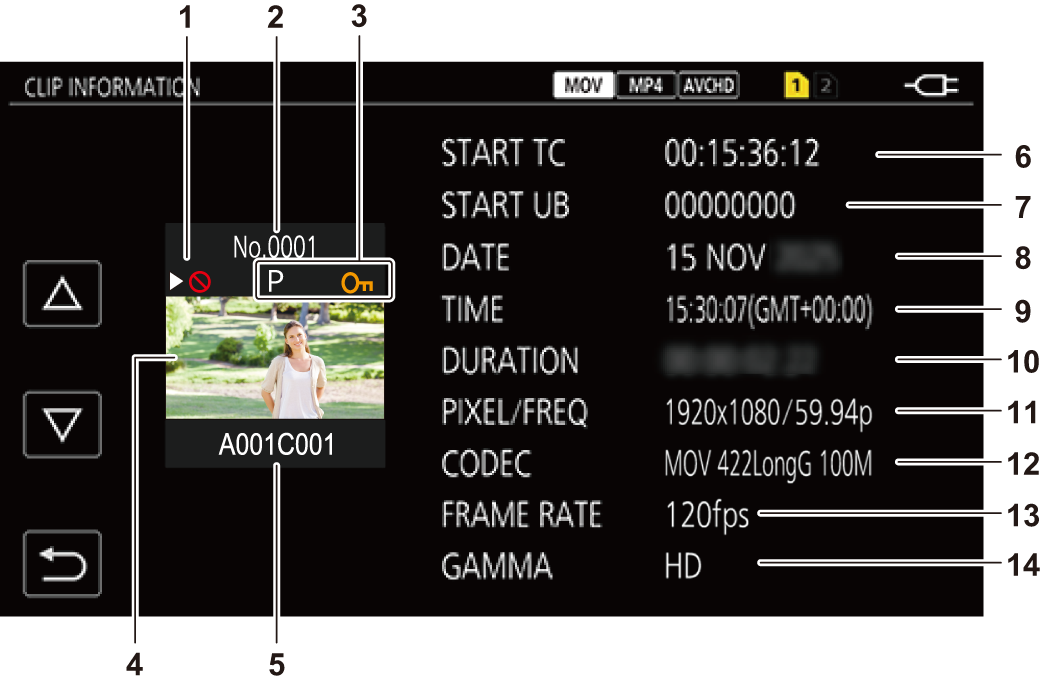
Displays the information of the clip where the cursor is positioned.
-
Move the yellow cursor to the clip to display the clip information.
-
Select the [THUMBNAIL] menu
[CLIP] [INFORMATION].
The clip information is displayed.
Clip information
-
Displayed when using
-
Clip that cannot be played back
This is displayed when the clip cannot be played back with the unit because the system frequency is different, etc.
-
Thumbnail number
-
Protect status of the clip/defective clip/unknown clip/incomplete clip/proxy
 :
:
This is displayed when the clip is protected.
1:
This is displayed for a defective P2 clip that may be repaired.
1:
This is displayed for a defective P2 clip that cannot be repaired.
1:
This is displayed for a P2 clip with a different format for P2 standard.
1:
This is displayed for a P2 clip when the clip is recorded over multiple memory cards, and any of those memory cards are not inserted.
 1:
1:
This is displayed when the clip has been recorded with proxy.
-
Thumbnail image
-
Clip name
-
[START TC]
Displays the time code value at the start of the recording.
-
[START UB]
Displays the user bits value at the start of the recording.
-
[DATE]
Displays the date of the recording.
-
[TIME]
Displays the time at the start of recording.
-
[DURATION]
Displays the time length of the clip.
-
[PIXEL/FREQ]
Displays the recording format of the clip.
-
[CODEC]/[CODEC/AUDIO]
1
Displays the recording file format and the recording codec of the clip.
(For the )
Displays the number of audio bits for the clip when the recording format is AVC-I100/AVC-I50.
-
[FRAME RATE]
Displays the frame rate for super slow recording.
-
[GAMMA]
Displays the gamma of the clip.
Displayed when the [SYSTEM] menu [FILE FORMAT] is set to other than [AVCHD].