
Additions/Changes to Other Functions
 [AF Detect. Multi. Frame Disp.] Function Has Been Added
Changes to the Functionality of [Human Eye Detection Display]
Anamorphic Recording Function Has Been Enhanced
Functionality of the ISO Sensitivity Setting Screen Has Been Changed
[LUT View Assist (App)] Has Been Added to [Log View Assist]
Changes to the Functionality of [Constant Preview]
[Video Live View Mode] Function Has Been Added
Changes to the Functionality of [False Color]
Changes to the Fn Button Initial Settings
[ISO Auto] Has Been Added to
[Fn Button Set]
[LUT View Assist (App)] Has Been Added to [Fn Button Set]
[LUT View Assist (App)] Has Been Added to [Q.MENU Settings]
[AF Detect. Multi. Frame Disp.] Function Has Been Added
It is now possible to make settings to display the automatic detection frames on only the main subjects during AF.

 [
[ ] [
] [ ] Select [AF Detect. Multi. Frame Disp.]
[ON]
Frames are displayed on all detected subjects.
[OFF]
Frames displayed only on main subjects.
 If you want the frame displayed on another subject, use touch or joystick operations to change the subject.
Changes to the Functionality of [Human Eye Detection Display]
The composition of [Human Eye Detection Display] has been changed.
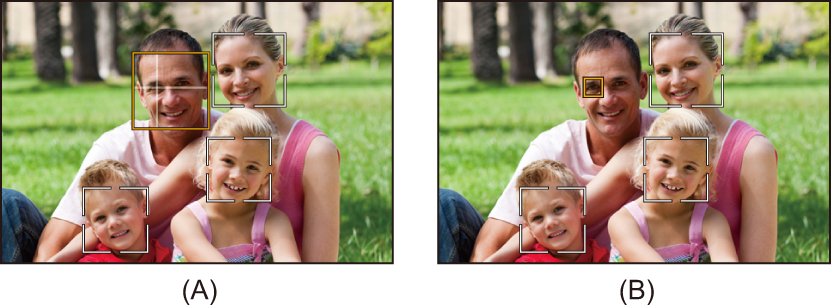
It is now possible to set how to indicate the position of an eye when a human eye is detected during AF.
[] [] Select [Human Eye Detection Display]
[Human Eye Detection Display]
|
[Eye Detection Style] |
|
|
[Crosshairs During Focus] |
|
|
Sets how to indicate the position of an eye when a human eye is detected. [Eye Detection Style] [ [
[Crosshairs During Focus] [ON]: A cross on the eye remains displayed when focused, such as when the shutter button is pressed halfway. [OFF]: A cross on the eye is not displayed when focused, such as when the shutter button is pressed halfway. |
|

 ] / [
] / [ ]
]
Anamorphic Recording Function Has Been Enhanced
1.6× has been added as a rate for the anamorphic lens.
 [Anamorphic (Video)]
You can now select [ ] ([1.6×]) with [Anamorphic (Video)] in the [Image Stabilizer].
Picture: [ ] [
] [ ] [Image Stabilizer] Select [Anamorphic (Video)]
Video: [ ] [
] [ ] [Image Stabilizer] Select [Anamorphic (Video)]
[Anamorphic Desqueeze Display]
You can now select [ ] ([1.6×]) in [Anamorphic Desqueeze Display].
[] [ ] Select [Anamorphic Desqueeze Display]
Functionality of the ISO Sensitivity Setting Screen Has Been Changed
When [Dual Native ISO Setting] is [AUTO] in the [ ]/[S&Q] mode, the low sensitivity range and high sensitivity range are identified with colors in the setting screen for ISO sensitivity.
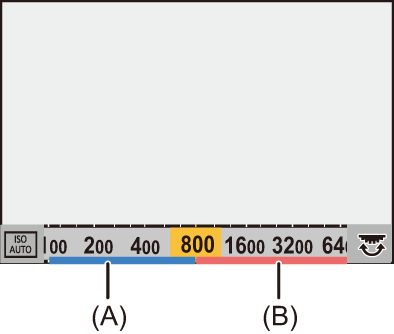
(A) Low sensitivity range (blue)
(B) High sensitivity range (pink)
|
– Low sensitivity: blue – High sensitivity: pink |

 ] ([Sensitivity]) is set with [Control Dial Assignment] or [Focus Ring Setting During AF] and the ISO sensitivity is changed to the base sensitivity with the control dial or focus ring, the ISO sensitivity value is identified with a color.
[LUT View Assist (App)] Has Been Added to [Log View Assist]
[LUT View Assist (App)] has been added to the [Log View Assist] in the [Custom] ([Monitor / Display (Video)]) menu.
[] [] Select [Log View Assist]
[LUT View Assist (App)]
You can view images with LUT files applied with the smartphone applications “LUMIX Lab”/“LUMIX Flow”.
|
– When [LUT] is applied using image quality adjustments in [Photo Style] |
Changes to the Functionality of [Constant Preview]
When you set [Constant Preview] to [OFF], an icon ( ) is displayed to indicate that the preview effect is disabled in the recording screen for the [A]/[M] mode.
[] [] Select [Constant Preview]
[Video Live View Mode] Function Has Been Added
The same image quality can now be used for the video live view displayed during recording standby as for during video recording.
[ ] [] [Power Save Mode] Select [Video Live View Mode]
|
[Video Live View Mode] |
Sets the video live view behavior in [ [POWER SAVING]: Power consumption is reduced during recording standby. There may be a difference in the image quality of the live views during recording standby and during video recording. [IMAGE PRIORITY]: Image quality is the same during recording standby and during video recording. The temperature of the camera rises during recording standby, so the available recording time is reduced. |
|
Changes to the Functionality of [False Color]
The same image quality can now be displayed with false color applied during both recording standby and while recording video.
The power consumption increases when false color is applied and the camera temperature increases more readily.
|
|
Changes to the Fn Button Initial Settings
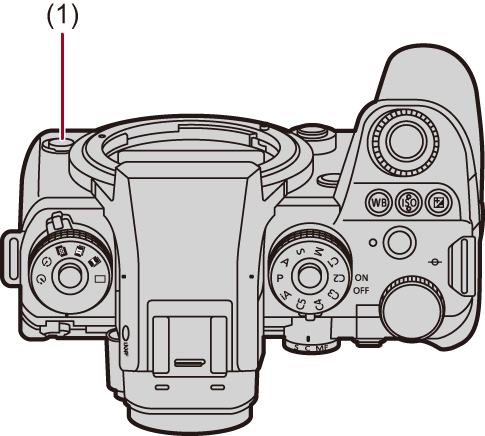
The initial settings for the sub video rec. button have been changed.
Fn Button Default Settings
|
|
[ISO Auto] Has Been Added to [Fn Button Set]
[ISO Auto] can be assigned to an Fn button.
ISO auto switches between [ON] and [OFF] each time you press the assigned button in the recording screen.
(ISO sensitivity reverts to the previous setting when [OFF] is set.)
Select [Fn Button Set].
[] [ ] [Fn Button Set] [Setting in Photo Mode]/[Setting in Video/S&Q Mode]
Setting Items ([Fn Button Set]/[Setting in Photo Mode]/[Setting in Video/S&Q Mode])
[1] tab
 [Image Quality]
[ISO Auto]
[LUT View Assist (App)] Has Been Added to [Fn Button Set]
[LUT View Assist (App)] can be assigned to an Fn button.
Select [Fn Button Set].
[] [] [Fn Button Set] [Setting in Photo Mode]/[Setting in Video/S&Q Mode]
Setting Items ([Fn Button Set]/[Setting in Photo Mode]/[Setting in Video/S&Q Mode])
[3] tab
[Monitor / Display]
[LUT View Assist (App)]
[LUT View Assist (App)] Has Been Added to [Q.MENU Settings]
[LUT View Assist (App)] can be assigned to the Quick menu.
Select [Q.MENU Settings].
[] [] [Q.MENU Settings] [Item Customize (Photo Mode)]/[Item Customize (Video/S&Q Mode)]
[2] tab
[Monitor / Display]
[LUT View Assist (App)]