
[REAL TIME LUT]





Set the Photo Style to [REAL TIME LUT] and apply a LUT file.
-
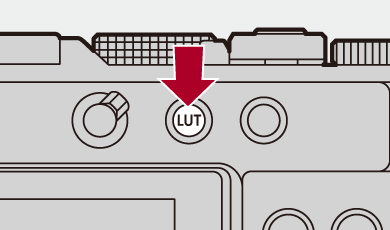
Press [LUT].
 When setting up initially, etc., after purchase, the QR code that takes you to the site for downloading “LUMIX Lab” may be displayed.
-
Select the LUT.
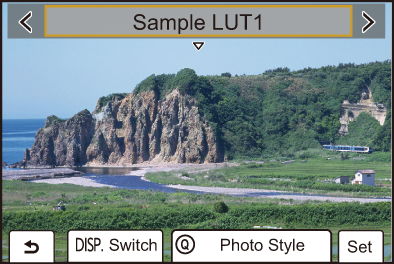
 Press
Press 
 to select, and then press
  .
.
You can also select by rotating  or
or  .
.
If you press  , you can adjust image quality. (
 Adjusting Image Quality)
– Select the settings by pressing  , adjust with , and press .
– Adjusted items are indicated with [ ].
].
The LUT file list is displayed when you press [DISP.].
Press [Q] to switch to the Photo Style screen. ([Photo Style])
You can apply the LUT file that was registered in the [LUT Library]. ([LUT Library])
[Sample LUT1] is applied in the default setting.