
[Rec Quality]





Sets the image quality of videos to be recorded.
The image qualities you can select depend on the recording mode, [System Frequency], and [Rec. File Format(Video)] settings.
The [Image Area of Video] setting items you can select depend on the [Rec Quality] settings.
[Rec Quality] settings can also be made using [Filtering] ( [Filtering]) to display only items that meet your conditions and [add to list] ([add to list]) to register recording qualities you use often.
-
Set to [
 ] or [S&Q] mode.
-
Set [Rec Quality].


 [
[ ] [
] [ ] [Rec Quality]
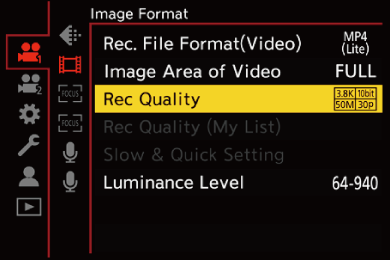
 To record video with a bit rate of 72 Mbps or more, you require an SD card with the corresponding Speed Class.
For information about the cards that can be used (SD Cards That Can Be Used with This Camera)
 [Rec. File Format(Video)]: [MP4(Lite)]
YUV, Bit value, Image compression: 4:2:0, 10 bit, Long GOP
Audio format: AAC (2ch)
(A) Recording frame rate
(B) Bit rate (Mbps)
(C) Video compression format (HEVC: H.265/HEVC)
|
[System Frequency]: [59.94Hz (NTSC)] |
|||||||
|
[Rec Quality] |
[Image Area of Video] |
Resolution |
Aspect ratio |
(A) |
(B) |
(C) |
|
|
FULL |
|
||||||
|
[3.8K/10bit/50M/30p] |
|
|
3840×2880 |
4:3 |
29.97p |
50 |
HEVC |
|
[4K/10bit/70M/120p] |
|
|
3840×2160 |
16:9 |
119.88p |
70 |
HEVC |
|
[4K/10bit/50M/60p] |
|
|
3840×2160 |
16:9 |
59.94p |
50 |
HEVC |
|
[FHD/10bit/24M/120p] |
|
|
1920×1080 |
16:9 |
119.88p |
24 |
HEVC |
|
[FHD/10bit/16M/60p] |
|
|
1920×1080 |
16:9 |
59.94p |
16 |
HEVC |


|
[System Frequency]: [50.00Hz (PAL)] |
|||||||
|
[Rec Quality] |
[Image Area of Video] |
Resolution |
Aspect ratio |
(A) |
(B) |
(C) |
|
|
FULL |
|
||||||
|
[3.8K/10bit/50M/25p] |
|
|
3840×2880 |
4:3 |
25.00p |
50 |
HEVC |
|
[4K/10bit/70M/100p] |
|
|
3840×2160 |
16:9 |
100.00p |
70 |
HEVC |
|
[4K/10bit/50M/50p] |
|
|
3840×2160 |
16:9 |
50.00p |
50 |
HEVC |
|
[FHD/10bit/24M/100p] |
|
|
1920×1080 |
16:9 |
100.00p |
24 |
HEVC |
|
[FHD/10bit/16M/50p] |
|
|
1920×1080 |
16:9 |
50.00p |
16 |
HEVC |
[Rec. File Format(Video)]: [MP4]
YUV, Bit value, Image compression:
– [10bit] recording quality: 4:2:0, 10 bit, Long GOP
– [8bit] recording quality: 4:2:0, 8 bit, Long GOP
Audio format: AAC (2ch)
(A) Recording frame rate
(B) Bit rate (Mbps)
(C) Video compression format (HEVC: H.265/HEVC, AVC: H.264/MPEG-4 AVC)
|
[System Frequency]: [59.94Hz (NTSC)] |
|||||||
|
[Rec Quality] |
[Image Area of Video] |
Resolution |
Aspect ratio |
(A) |
(B) |
(C) |
|
|
FULL |
|
||||||
|
[4K/10bit/100M/60p] |
|
|
3840×2160 |
16:9 |
59.94p |
100 |
HEVC |
|
[4K/10bit/72M/30p] |
|
|
3840×2160 |
16:9 |
29.97p |
72 |
HEVC |
|
[4K/8bit/100M/30p] |
|
|
3840×2160 |
16:9 |
29.97p |
100 |
AVC |
|
[4K/10bit/72M/24p] |
|
|
3840×2160 |
16:9 |
23.98p |
72 |
HEVC |
|
[4K/8bit/100M/24p] |
|
|
3840×2160 |
16:9 |
23.98p |
100 |
AVC |
|
[FHD/8bit/28M/60p] |
|
|
1920×1080 |
16:9 |
59.94p |
28 |
AVC |
|
[FHD/8bit/20M/30p] |
|
|
1920×1080 |
16:9 |
29.97p |
20 |
AVC |
|
[FHD/8bit/24M/24p] |
|
|
1920×1080 |
16:9 |
23.98p |
24 |
AVC |
|
[System Frequency]: [50.00Hz (PAL)] |
|||||||
|
[Rec Quality] |
[Image Area of Video] |
Resolution |
Aspect ratio |
(A) |
(B) |
(C) |
|
|
FULL |
|
||||||
|
[4K/10bit/100M/50p] |
|
|
3840×2160 |
16:9 |
50.00p |
100 |
HEVC |
|
[4K/10bit/72M/25p] |
|
|
3840×2160 |
16:9 |
25.00p |
72 |
HEVC |
|
[4K/8bit/100M/25p] |
|
|
3840×2160 |
16:9 |
25.00p |
100 |
AVC |
|
[FHD/8bit/28M/50p] |
|
|
1920×1080 |
16:9 |
50.00p |
28 |
AVC |
|
[FHD/8bit/20M/25p] |
|
|
1920×1080 |
16:9 |
25.00p |
20 |
AVC |
[Rec. File Format(Video)]: [MOV]
YUV, Bit value, Image compression:
– [422/10-I] recording quality: 4:2:2, 10 bit, ALL-Intra
– [422/10-L] recording quality: 4:2:2, 10 bit, Long GOP
– [420/10-L] recording quality: 4:2:0, 10 bit, Long GOP
– [420/8-L] recording quality: 4:2:0, 8 bit, Long GOP
Audio format: LPCM (2ch/4ch)
– 4-channel audio can be recorded when the XLR Microphone Adaptor (DMW-XLR2: optional) is connected by setting [4ch Audio Recording] to [XLR] or [XLR+CAMERA].
– You can record 4-channel audio when you have connected the Digital Shotgun Microphone (DMW-DMS1: optional) and set [4ch Audio Recording] to other than [OFF].
: Only able to set or record when in [] mode.
(A) Recording frame rate
(B) Bit rate (Mbps)
(C) Video compression format (HEVC: H.265/HEVC, AVC: H.264/MPEG-4 AVC)
|
[System Frequency]: [59.94Hz (NTSC)] |
||||||||
|
[Rec Quality] |
|
[Image Area of Video] |
Resolution |
Aspect ratio |
(A) |
(B) |
(C) |
|
|
FULL |
|
|||||||
|
[5.6K/60p/420/10-L] |
|
|
|
5632×2976 |
17:9 |
59.94p |
300 |
HEVC |
|
[5.6K/48p/420/10-L] |
|
|
|
5632×2976 |
17:9 |
47.95p |
300 |
HEVC |
|
[5.6K/30p/420/10-L] |
|
|
|
5632×2976 |
17:9 |
29.97p |
200 |
HEVC |
|
[5.6K/24p/420/10-L] |
|
|
|
5632×2976 |
17:9 |
23.98p |
200 |
HEVC |
|
[5.2K/30p/420/10-L] |
|
|
|
5184×3888 |
4:3 |
29.97p |
200 |
HEVC |
|
[5.2K/24p/420/10-L] |
|
|
|
5184×3888 |
4:3 |
23.98p |
200 |
HEVC |
|
[4.4K/60p/420/10-L] |
|
|
|
4352×3264 |
4:3 |
59.94p |
300 |
HEVC |
|
[4.4K/48p/420/10-L] |
|
|
|
4352×3264 |
4:3 |
47.95p |
300 |
HEVC |
|
[C4K/120p/420/10-L] |
|
|
|
4096×2160 |
17:9 |
119.88p |
300 |
HEVC |
|
[C4K/60p/422/10-I] |
|
|
|
4096×2160 |
17:9 |
59.94p |
600 |
AVC |
|
[C4K/60p/422/10-L] |
|
|
|
4096×2160 |
17:9 |
59.94p |
200 |
AVC |
|
[C4K/60p/420/10-L] |
|
|
|
4096×2160 |
17:9 |
59.94p |
200 |
HEVC |
|
[C4K/60p/420/8-L] |
|
|
|
4096×2160 |
17:9 |
59.94p |
150 |
AVC |
|
[C4K/48p/422/10-I] |
|
|
|
4096×2160 |
17:9 |
47.95p |
600 |
AVC |
|
[C4K/48p/422/10-L] |
|
|
|
4096×2160 |
17:9 |
47.95p |
200 |
AVC |
|
[C4K/48p/420/10-L] |
|
|
|
4096×2160 |
17:9 |
47.95p |
200 |
HEVC |
|
[C4K/30p/422/10-I] |
|
|
|
4096×2160 |
17:9 |
29.97p |
400 |
AVC |
|
[C4K/30p/422/10-L] |
|
|
|
4096×2160 |
17:9 |
29.97p |
150 |
AVC |
|
[C4K/30p/420/10-L] |
|
|
|
4096×2160 |
17:9 |
29.97p |
150 |
HEVC |
|
[C4K/30p/420/8-L] |
|
|
|
4096×2160 |
17:9 |
29.97p |
100 |
AVC |
|
[C4K/24p/422/10-I] |
|
|
|
4096×2160 |
17:9 |
23.98p |
400 |
AVC |
|
[C4K/24p/422/10-L] |
|
|
|
4096×2160 |
17:9 |
23.98p |
150 |
AVC |
|
[C4K/24p/420/10-L] |
|
|
|
4096×2160 |
17:9 |
23.98p |
150 |
HEVC |
|
[C4K/24p/420/8-L] |
|
|
|
4096×2160 |
17:9 |
23.98p |
100 |
AVC |
|
[4K/120p/420/10-L] |
|
|
|
3840×2160 |
16:9 |
119.88p |
300 |
HEVC |
|
[4K/60p/422/10-I] |
|
|
|
3840×2160 |
16:9 |
59.94p |
600 |
AVC |
|
[4K/60p/422/10-L] |
|
|
|
3840×2160 |
16:9 |
59.94p |
200 |
AVC |
|
[4K/60p/420/10-L] |
|
|
|
3840×2160 |
16:9 |
59.94p |
200 |
HEVC |
|
[4K/60p/420/8-L] |
|
|
|
3840×2160 |
16:9 |
59.94p |
150 |
AVC |
|
[4K/48p/422/10-I] |
|
|
|
3840×2160 |
16:9 |
47.95p |
600 |
AVC |
|
[4K/48p/422/10-L] |
|
|
|
3840×2160 |
16:9 |
47.95p |
200 |
AVC |
|
[4K/48p/420/10-L] |
|
|
|
3840×2160 |
16:9 |
47.95p |
200 |
HEVC |
|
[4K/30p/422/10-I] |
|
|
|
3840×2160 |
16:9 |
29.97p |
400 |
AVC |
|
[4K/30p/422/10-L] |
|
|
|
3840×2160 |
16:9 |
29.97p |
150 |
AVC |
|
[4K/30p/420/10-L] |
|
|
|
3840×2160 |
16:9 |
29.97p |
150 |
HEVC |
|
[4K/30p/420/8-L] |
|
|
|
3840×2160 |
16:9 |
29.97p |
100 |
AVC |
|
[4K/24p/422/10-I] |
|
|
|
3840×2160 |
16:9 |
23.98p |
400 |
AVC |
|
[4K/24p/422/10-L] |
|
|
|
3840×2160 |
16:9 |
23.98p |
150 |
AVC |
|
[4K/24p/420/10-L] |
|
|
|
3840×2160 |
16:9 |
23.98p |
150 |
HEVC |
|
[4K/24p/420/8-L] |
|
|
|
3840×2160 |
16:9 |
23.98p |
100 |
AVC |
|
[FHD/240p/422/10-L] |
|
|
|
1920×1080 |
16:9 |
239.76p |
200 |
AVC |
|
[FHD/240p/420/10-L] |
|
|
|
1920×1080 |
16:9 |
239.76p |
200 |
HEVC |
|
[FHD/120p/422/10-I] |
|
|
|
1920×1080 |
16:9 |
119.88p |
400 |
AVC |
|
[FHD/120p/422/10-L] |
|
|
|
1920×1080 |
16:9 |
119.88p |
150 |
AVC |
|
[FHD/120p/420/10-L] |
|
|
|
1920×1080 |
16:9 |
119.88p |
150 |
HEVC |
|
[FHD/60p/422/10-I] |
|
|
|
1920×1080 |
16:9 |
59.94p |
200 |
AVC |
|
[FHD/60p/422/10-L] |
|
|
|
1920×1080 |
16:9 |
59.94p |
100 |
AVC |
|
[FHD/60p/420/10-L] |
|
|
|
1920×1080 |
16:9 |
59.94p |
100 |
HEVC |
|
[FHD/60p/420/8-L] |
|
|
|
1920×1080 |
16:9 |
59.94p |
50 |
AVC |
|
[FHD/48p/422/10-I] |
|
|
|
1920×1080 |
16:9 |
47.95p |
200 |
AVC |
|
[FHD/48p/422/10-L] |
|
|
|
1920×1080 |
16:9 |
47.95p |
100 |
AVC |
|
[FHD/48p/420/10-L] |
|
|
|
1920×1080 |
16:9 |
47.95p |
100 |
HEVC |
|
[FHD/30p/422/10-I] |
|
|
|
1920×1080 |
16:9 |
29.97p |
200 |
AVC |
|
[FHD/30p/422/10-L] |
|
|
|
1920×1080 |
16:9 |
29.97p |
100 |
AVC |
|
[FHD/30p/420/10-L] |
|
|
|
1920×1080 |
16:9 |
29.97p |
100 |
HEVC |
|
[FHD/30p/420/8-L] |
|
|
|
1920×1080 |
16:9 |
29.97p |
25 |
AVC |
|
[FHD/24p/422/10-I] |
|
|
|
1920×1080 |
16:9 |
23.98p |
200 |
AVC |
|
[FHD/24p/422/10-L] |
|
|
|
1920×1080 |
16:9 |
23.98p |
100 |
AVC |
|
[FHD/24p/420/10-L] |
|
|
|
1920×1080 |
16:9 |
23.98p |
100 |
HEVC |
|
[FHD/24p/420/8-L] |
|
|
|
1920×1080 |
16:9 |
23.98p |
25 |
AVC |
|
[System Frequency]: [50.00Hz (PAL)] |
||||||||
|
[Rec Quality] |
|
[Image Area of Video] |
Resolution |
Aspect ratio |
(A) |
(B) |
(C) |
|
|
FULL |
|
|||||||
|
[5.6K/50p/420/10-L] |
|
|
|
5632×2976 |
17:9 |
50.00p |
300 |
HEVC |
|
[5.6K/25p/420/10-L] |
|
|
|
5632×2976 |
17:9 |
25.00p |
200 |
HEVC |
|
[5.2K/25p/420/10-L] |
|
|
|
5184×3888 |
4:3 |
25.00p |
200 |
HEVC |
|
[4.4K/50p/420/10-L] |
|
|
|
4352×3264 |
4:3 |
50.00p |
300 |
HEVC |
|
[C4K/100p/420/10-L] |
|
|
|
4096×2160 |
17:9 |
100.00p |
300 |
HEVC |
|
[C4K/50p/422/10-I] |
|
|
|
4096×2160 |
17:9 |
50.00p |
600 |
AVC |
|
[C4K/50p/422/10-L] |
|
|
|
4096×2160 |
17:9 |
50.00p |
200 |
AVC |
|
[C4K/50p/420/10-L] |
|
|
|
4096×2160 |
17:9 |
50.00p |
200 |
HEVC |
|
[C4K/50p/420/8-L] |
|
|
|
4096×2160 |
17:9 |
50.00p |
150 |
AVC |
|
[C4K/25p/422/10-I] |
|
|
|
4096×2160 |
17:9 |
25.00p |
400 |
AVC |
|
[C4K/25p/422/10-L] |
|
|
|
4096×2160 |
17:9 |
25.00p |
150 |
AVC |
|
[C4K/25p/420/10-L] |
|
|
|
4096×2160 |
17:9 |
25.00p |
150 |
HEVC |
|
[C4K/25p/420/8-L] |
|
|
|
4096×2160 |
17:9 |
25.00p |
100 |
AVC |
|
[4K/100p/420/10-L] |
|
|
|
3840×2160 |
16:9 |
100.00p |
300 |
HEVC |
|
[4K/50p/422/10-I] |
|
|
|
3840×2160 |
16:9 |
50.00p |
600 |
AVC |
|
[4K/50p/422/10-L] |
|
|
|
3840×2160 |
16:9 |
50.00p |
200 |
AVC |
|
[4K/50p/420/10-L] |
|
|
|
3840×2160 |
16:9 |
50.00p |
200 |
HEVC |
|
[4K/50p/420/8-L] |
|
|
|
3840×2160 |
16:9 |
50.00p |
150 |
AVC |
|
[4K/25p/422/10-I] |
|
|
|
3840×2160 |
16:9 |
25.00p |
400 |
AVC |
|
[4K/25p/422/10-L] |
|
|
|
3840×2160 |
16:9 |
25.00p |
150 |
AVC |
|
[4K/25p/420/10-L] |
|
|
|
3840×2160 |
16:9 |
25.00p |
150 |
HEVC |
|
[4K/25p/420/8-L] |
|
|
|
3840×2160 |
16:9 |
25.00p |
100 |
AVC |
|
[FHD/200p/422/10-L] |
|
|
|
1920×1080 |
16:9 |
200.00p |
200 |
AVC |
|
[FHD/200p/420/10-L] |
|
|
|
1920×1080 |
16:9 |
200.00p |
200 |
HEVC |
|
[FHD/100p/422/10-I] |
|
|
|
1920×1080 |
16:9 |
100.00p |
400 |
AVC |
|
[FHD/100p/422/10-L] |
|
|
|
1920×1080 |
16:9 |
100.00p |
150 |
AVC |
|
[FHD/100p/420/10-L] |
|
|
|
1920×1080 |
16:9 |
100.00p |
150 |
HEVC |
|
[FHD/50p/422/10-I] |
|
|
|
1920×1080 |
16:9 |
50.00p |
200 |
AVC |
|
[FHD/50p/422/10-L] |
|
|
|
1920×1080 |
16:9 |
50.00p |
100 |
AVC |
|
[FHD/50p/420/10-L] |
|
|
|
1920×1080 |
16:9 |
50.00p |
100 |
HEVC |
|
[FHD/50p/420/8-L] |
|
|
|
1920×1080 |
16:9 |
50.00p |
50 |
AVC |
|
[FHD/25p/422/10-I] |
|
|
|
1920×1080 |
16:9 |
25.00p |
200 |
AVC |
|
[FHD/25p/422/10-L] |
|
|
|
1920×1080 |
16:9 |
25.00p |
100 |
AVC |
|
[FHD/25p/420/10-L] |
|
|
|
1920×1080 |
16:9 |
25.00p |
100 |
HEVC |
|
[FHD/25p/420/8-L] |
|
|
|
1920×1080 |
16:9 |
25.00p |
25 |
AVC |
|
[System Frequency]: [24.00Hz (CINEMA)] |
||||||||
|
[Rec Quality] |
|
[Image Area of Video] |
Resolution |
Aspect ratio |
(A) |
(B) |
(C) |
|
|
FULL |
|
|||||||
|
[5.6K/48p/420/10-L] |
|
|
|
5632×2976 |
17:9 |
48.00p |
300 |
HEVC |
|
[5.6K/24p/420/10-L] |
|
|
|
5632×2976 |
17:9 |
24.00p |
200 |
HEVC |
|
[5.2K/24p/420/10-L] |
|
|
|
5184×3888 |
4:3 |
24.00p |
200 |
HEVC |
|
[4.4K/48p/420/10-L] |
|
|
|
4352×3264 |
4:3 |
48.00p |
300 |
HEVC |
|
[C4K/120p/420/10-L] |
|
|
|
4096×2160 |
17:9 |
120.00p |
300 |
HEVC |
|
[C4K/24p/422/10-I] |
|
|
|
4096×2160 |
17:9 |
24.00p |
400 |
AVC |
|
[C4K/24p/422/10-L] |
|
|
|
4096×2160 |
17:9 |
24.00p |
150 |
AVC |
|
[C4K/24p/420/10-L] |
|
|
|
4096×2160 |
17:9 |
24.00p |
150 |
HEVC |
|
[C4K/24p/420/8-L] |
|
|
|
4096×2160 |
17:9 |
24.00p |
100 |
AVC |
|
[4K/120p/420/10-L] |
|
|
|
3840×2160 |
16:9 |
120.00p |
300 |
HEVC |
|
[4K/24p/422/10-I] |
|
|
|
3840×2160 |
16:9 |
24.00p |
400 |
AVC |
|
[4K/24p/422/10-L] |
|
|
|
3840×2160 |
16:9 |
24.00p |
150 |
AVC |
|
[4K/24p/420/10-L] |
|
|
|
3840×2160 |
16:9 |
24.00p |
150 |
HEVC |
|
[4K/24p/420/8-L] |
|
|
|
3840×2160 |
16:9 |
24.00p |
100 |
AVC |
|
[FHD/120p/422/10-I] |
|
|
|
1920×1080 |
16:9 |
120.00p |
400 |
AVC |
|
[FHD/120p/422/10-L] |
|
|
|
1920×1080 |
16:9 |
120.00p |
150 |
AVC |
|
[FHD/120p/420/10-L] |
|
|
|
1920×1080 |
16:9 |
120.00p |
150 |
HEVC |
|
[FHD/24p/422/10-I] |
|
|
|
1920×1080 |
16:9 |
24.00p |
200 |
AVC |
|
[FHD/24p/422/10-L] |
|
|
|
1920×1080 |
16:9 |
24.00p |
100 |
AVC |
|
[FHD/24p/420/10-L] |
|
|
|
1920×1080 |
16:9 |
24.00p |
100 |
HEVC |
|
[FHD/24p/420/8-L] |
|
|
|
1920×1080 |
16:9 |
24.00p |
25 |
AVC |
In this document, videos are indicated as follows according to their resolution:
– 5.6K (5632×2976) video: 5.6K video
– 5.2K (5184×3888) video: 5.2K video
– 4.4K (4352×3264) video: 4.4K video
– 3.8K (3840×2880) video: 3.8K video
– C4K (4096×2160) video: C4K video
– 4K (3840×2160) video: 4K video
– Full High Definition (1920×1080) video: FHD video
|
|


[Filtering]
When [Rec. File Format(Video)] is set to [MOV], you can specify items such as frame rate, number of pixels (resolution), and compression format (YUV, bit value, image compression), and just display recording qualities that meet those conditions.
-
In the [Rec Quality] setting screen, press [DISP.].
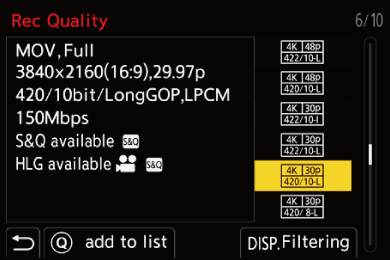
-
Press

 to select a setting item and then press .
Settings: [Frame Rate]/[Resolution]/[Codec]/[Hybrid Log Gamma]
-
Press
to select the filtering conditions and then press .
-
Press [DISP.] to confirm the setting.
You are returned to the [Rec Quality] setting screen.
Clearing the filtering conditions
Select [ANY] in Step 3.
The filtering conditions are also cleared when you do the following:
– Change the [Rec. File Format(Video)]
– Change the [System Frequency]
– Select a recording quality from [Rec Quality (My List)]
|
|
[add to list]
Select a recording quality and register it in My List. The recording quality you register can be set in [Rec Quality (My List)].
In the [Rec Quality] setting screen, press [Q].
The following settings are also registered at the same time:
– [System Frequency]
– [Rec. File Format(Video)]
– [Image Area of Video]
Setting or deleting in My List
-
Select [Rec Quality (My List)].
[] [] [Rec Quality (My List)]
-
Press
to select a setting item and then press .
You cannot select setting items that have different system frequencies.
To delete from My List, select the item and press [Q].
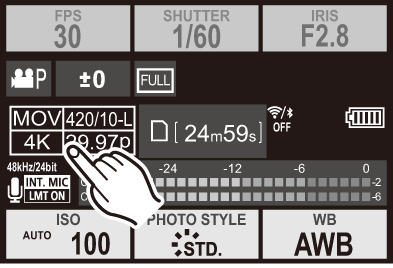
Setting from the control panel
It is possible to display the My List of recording qualities from the control panel in []/[S&Q] mode.
Touch the recording quality item.
When already registered in My List, the [Rec Quality (My List)] setting screen is displayed.
When not yet registered, the [Rec Quality] setting screen is displayed.
[Rec Quality (My List)] and [Rec Quality] switch each time you press the [DISP.] button.
The next time the setting screen is displayed, the screen last used is displayed.
|
|