
Focus assist function
The focus assist function enables you to focus the target easily.
The recording image on the LCD monitor and the viewfinder can be displayed enlarged, or the focused area can be visually enhanced.
 Enlarged display function
Center of the recording image is displayed enlarged to make it easier to focus.
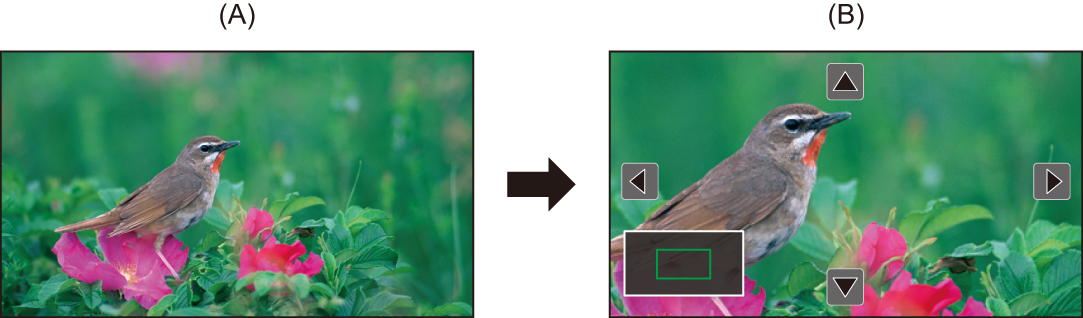
(A) Normal display
(B) Enlarged display
Using the enlarged display function
Set so enable/disable of the enlarged display function can be switched with a USER button.
-
Select [VIDEO OUT/LCD/VF]/[VIDEO OUT/LCD] menu
 [FOCUS ASSIST] [FOCUS ASSIST SW] [EXPAND] or [EXPAND&PEAKING].
-
Select the [CAMERA] menu
[USER SW] [USER1] to [USER13] [FOCUS ASSIST].
-
Press the USER button to which [FOCUS ASSIST] is assigned or touch the USER button icon.
Press the USER button or touch the USER button icon again to return to the normal display.
Setting the mode for enlarged display function
-
Select the mode for the enlarged display function in the [VIDEO OUT/LCD/VF]/[VIDEO OUT/LCD] menu
[FOCUS ASSIST] [EXPAND MODE].
[10SEC]:
Disables the enlarged display function after 10 seconds have elapsed.
[HOLD]:
Enables the enlarged display function until either the USER button assigned to [FOCUS ASSIST] is pressed again or the USER button icon is touched again.
[UNTIL REC]:
Enables the enlarged display function until starting the recording operation.
Setting the enlargement rate
-
Select the enlargement rate in the [VIDEO OUT/LCD/VF]/[VIDEO OUT/LCD] menu
[FOCUS ASSIST] [EXPAND VALUE].
 The enlargement rate can be selected from [×2], [×3], or [×4].
Setting the enlargement position
You can select the central position of the enlarged display from the 9 base points.
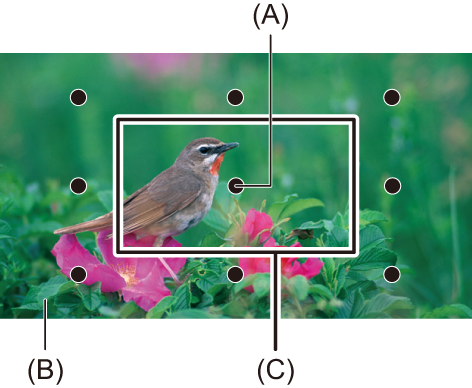
(A) Base point
(B) Screen actually recorded
(C) Enlarged display part
In the case of the multidial:
Turn the multidial to move the enlarged position. It will return to center when the multidial is pressed.
In case of touching the LCD monitor:
The enlarged position will move by touching the vertical and horizontal arrow markers on the LCD monitor.
Peaking display
The peaking display will outline the contour of the focused image in red, green, or white.
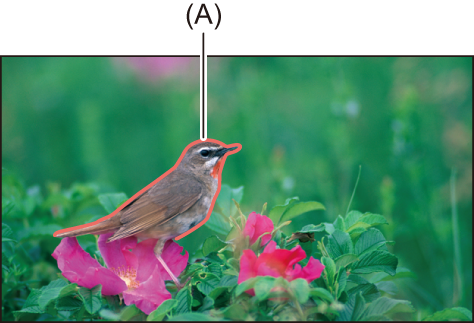
(A) Peaking display
Displaying the peaking display
Set so enable/disable of peaking display can be switched with a USER button.
-
Select [VIDEO OUT/LCD/VF]/[VIDEO OUT/LCD] menu
[FOCUS ASSIST] [FOCUS ASSIST SW] [PEAKING] or [EXPAND&PEAKING].
-
Select the [CAMERA] menu
[USER SW] [USER1] to [USER13] [FOCUS ASSIST].
-
Press the USER button to which [FOCUS ASSIST] is assigned or touch the USER button icon.
Press the USER button or touch the USER button icon again to return to the normal display.
Setting the color for peaking display
Sets the color of the peaking display.
-
Select the color of the peaking display in the [VIDEO OUT/LCD/VF]/[VIDEO OUT/LCD] menu
[FOCUS ASSIST] [PEAKING COLOR].
The color of the peaking display can be selected from [RED], [GREEN], or [WHITE].
Enlarged display and peaking display settings
-
Select the type of display in the [VIDEO OUT/LCD/VF]/[VIDEO OUT/LCD] menu
[FOCUS ASSIST] [FOCUS ASSIST SW].
[EXPAND]:
Enables the enlarged display.
[PEAKING]:
Enables the peaking display.
[EXPAND&PEAKING]:
Enables the enlarged display and peaking display.
Detail function (highlighting the outlines of images)
It is easier to focus if the contours of images on the LCD monitor and viewfinder are highlighted.
The intensity of contours on the LCD monitor does not affect the images output or recorded by the unit.
Set the intensity of contours in the [VIDEO OUT/LCD/VF]/[VIDEO OUT/LCD] menu [FOCUS ASSIST] [DETAIL] [ON] and adjust the [VIDEO OUT/LCD/VF]/[VIDEO OUT/LCD] menu [FOCUS ASSIST] [DETAIL LEVEL]/[DETAIL FREQ.].
You can also either press the USER button assigned to [LCD/VF DETAIL]/[LCD DETAIL] or touch the USER button icon to switch enable/disable of the [DETAIL] menu.
|
– Power is turned off. – Settings in the [VIDEO OUT/LCD/VF]/[VIDEO OUT/LCD] menu
– When using the area mode function – When using the face detection/tracking AE&AF function
– When the peaking display for focus assist is enabled
|