
Connecting to “LUMIX Lab” (Bluetooth Connection)
Follow a simple connection setup procedure (pairing) to connect to a smartphone that supports Bluetooth Low Energy.
 For the first-time connection, pairing settings are required.
When connecting the second and subsequent times, the connection is automatic when you set [Bluetooth Function] to [SMARTPHONE] on the camera.
|
Supported smartphones Android™: Android 11 or higher with Bluetooth 4.0 or higher (excluding those that do not support Bluetooth Low Energy) iOS: iOS 17 or higher
|

-
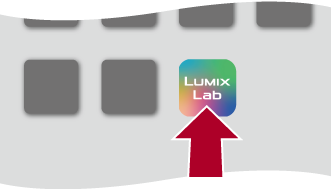
On the smartphone, start up “LUMIX Lab”.
-
View the content in the displayed guidance and start using the app.
-
Switch to the [Camera] screen and select [Add Camera].
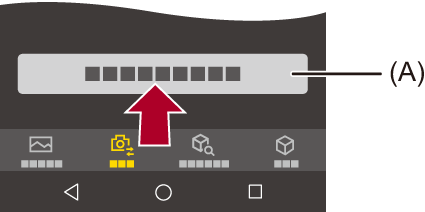
(A) [Add Camera]
-
Select [Connect via Bluetooth].
-
Set the camera to Bluetooth pairing standby state.


 [
[ ] [
] [ ] [Bluetooth] [Bluetooth Function] [SMARTPHONE]
The camera enters the pairing standby state.
If there is a paired smartphone, the camera enters the connection standby state. If you want to pair with a new smartphone, use the following procedure to put the camera in the pairing standby state.
[] [] [Bluetooth] [Pairing] [Add Smartphone]
-
Select the camera to be connected in “LUMIX Lab”.
Pairing is executed when you select [Pairing] in the confirmation screen.
|
When the Bluetooth function is enabled, but a connection is not established with the smartphone, [
|

 ] is displayed in the recording screen.
 End Bluetooth Connection
To terminate the Bluetooth connection, turn off the Bluetooth function of the camera.
[] [] [Bluetooth] [Bluetooth Function] Select [OFF]
|
|
Canceling Pairing
-
Cancel the pairing setting of the camera.
[] [] [Bluetooth] [Pairing] [Delete]
-
Select the smartphone for which to cancel the pairing.
|
|